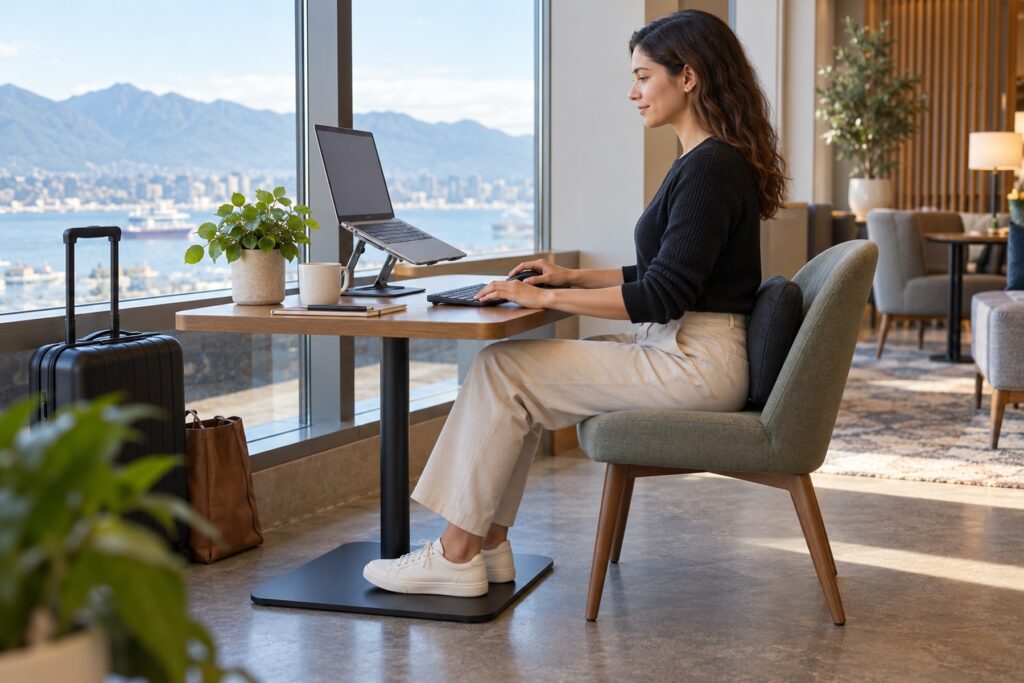
Working comfortably on a laptop requires solving one built-in compromise: the screen and keyboard are attached, so a height that helps the neck usually makes the hands work too high. For longer sessions, raise the screen and use a separate keyboard and pointing device; for brief tasks, support the device, bring it close, and change position before discomfort builds.
Why laptop ergonomics needs a different plan
A laptop is designed for portability, not for holding every joint in one ideal posture. Treat the setup as a temporary workstation whose demands should match the task duration, available furniture, and symptoms.
- A low screen increases downward gaze and neck flexion.
- Raising the whole laptop also raises and tilts its attached keyboard.
- A narrow touchpad can increase repeated finger and wrist work.
- Small tables may reduce forearm support and force shoulder reaching.
- Soft seating makes it harder to support the pelvis, feet, and device.
The OSHA computer workstation guidance uses neutral head, shoulder, elbow, wrist, and lower-back positions as practical starting points rather than a single rigid posture.
Build the best setup for longer work
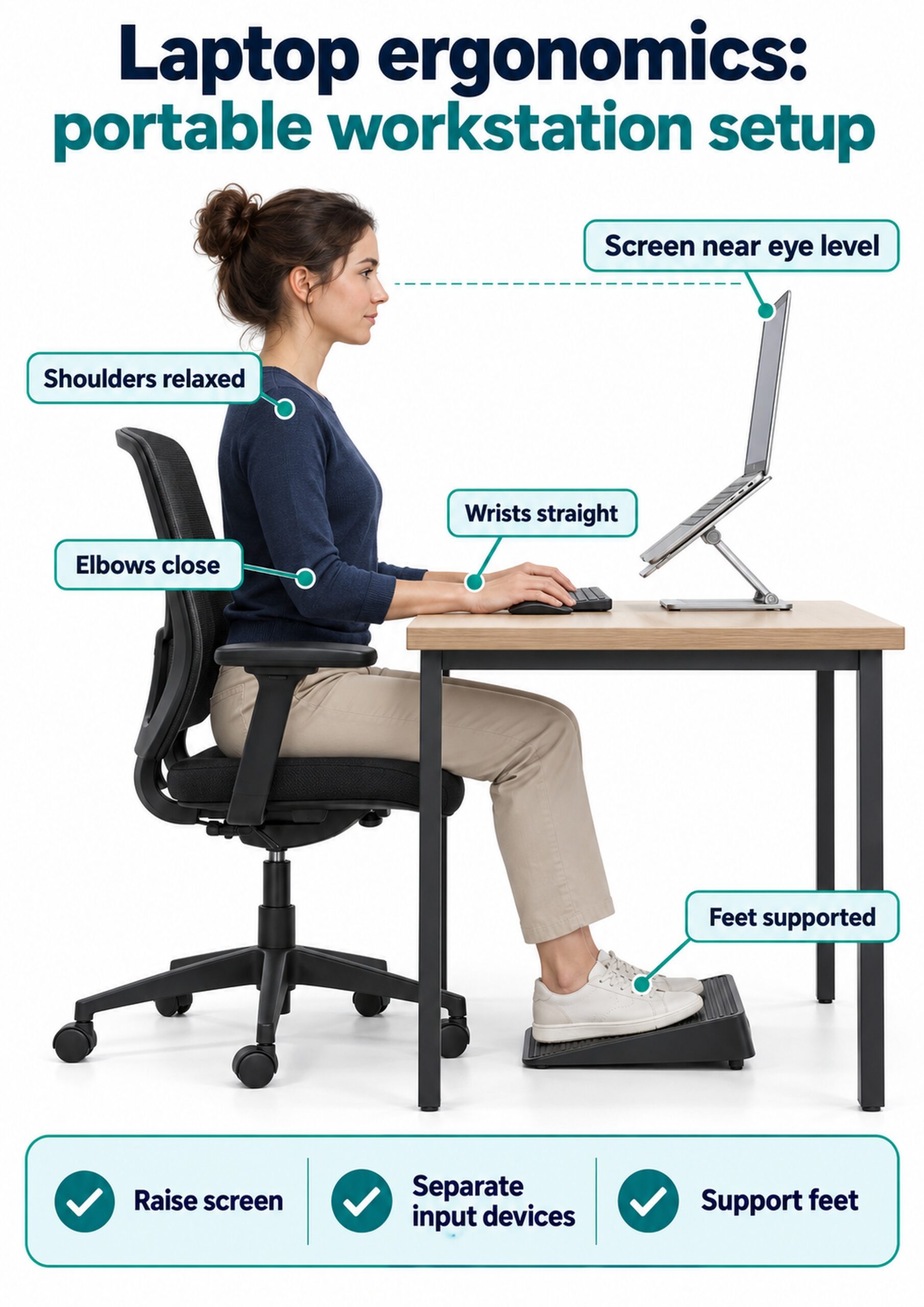
When a session will involve sustained typing, convert the laptop into a small desktop workstation. Elevate and stabilize the screen, then place an external keyboard and mouse where the shoulders can remain relaxed.
- Place the laptop on a stable riser, stand, or firm stack that cannot slide.
- Set the top portion of the screen near eye level while keeping the whole screen easy to view.
- Keep the external keyboard directly in front of the body.
- Place the mouse immediately beside the keyboard on the same surface.
- Sit close enough that the elbows remain near the torso.
Pack a small kit that makes this arrangement possible away from the office:
- Foldable laptop stand with a secure base
- Compact external keyboard
- Mouse or other pointing device that fits the hand
- Lightweight foot support or a safe substitute
- Charging cable long enough to avoid twisting toward an outlet
Use a short-task compromise when peripherals are unavailable
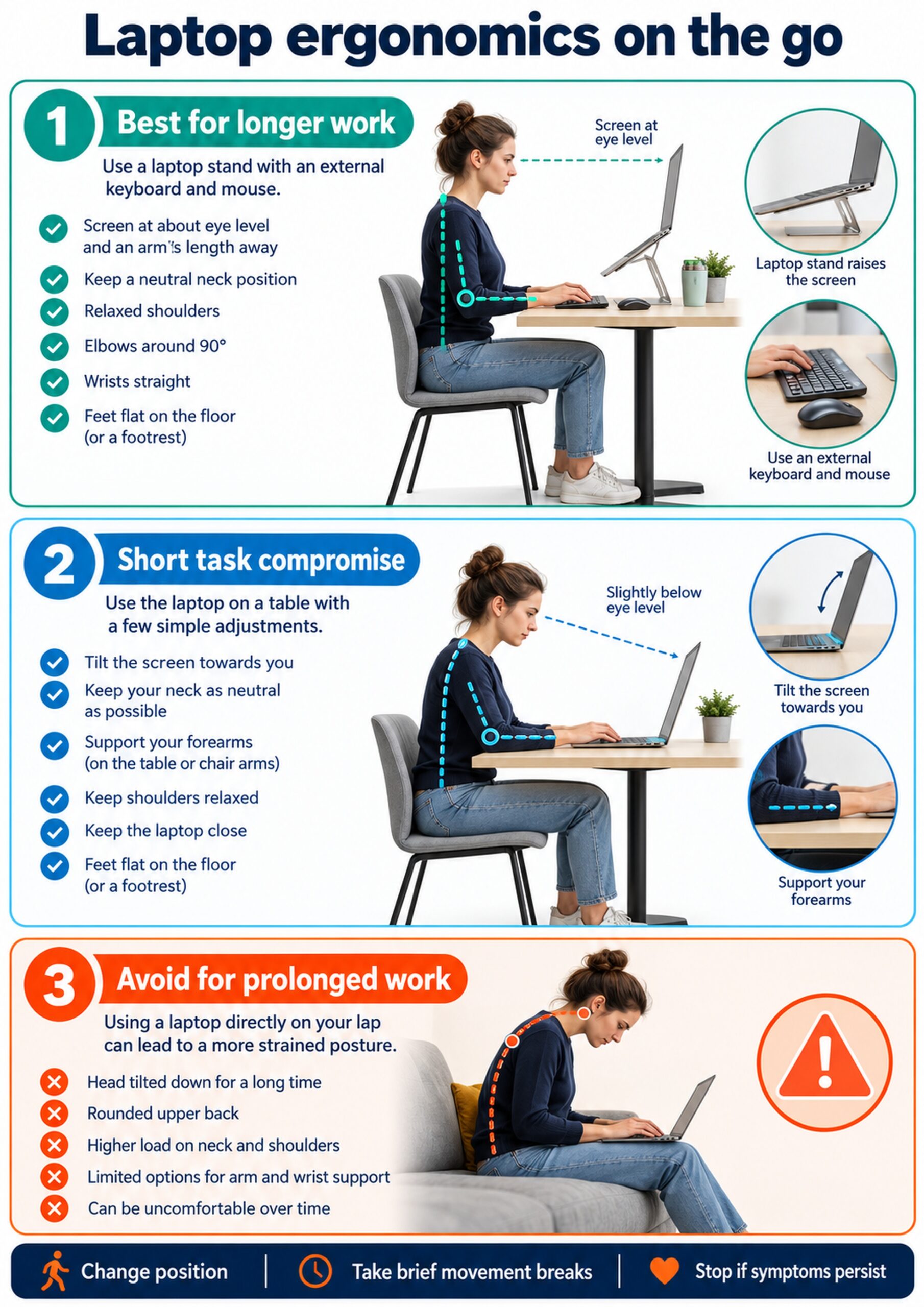
For a brief email or quick check, using the built-in keyboard may be reasonable. Keep the laptop on a table rather than balancing it loosely on the thighs, tilt the screen toward the eyes, and avoid turning a short task into an uninterrupted work block.
- Choose a table that lets the shoulders stay down.
- Bring the laptop close enough to avoid reaching.
- Support the forearms lightly without pressing the wrists on a sharp edge.
- Increase text size instead of leaning toward small type.
- Move to a full setup if typing continues longer than planned.
A CDC-hosted laboratory study on inclined notebook-computer setups found that raising the display improved head and neck posture, while larger inclines could increase wrist extension. That trade-off is why a separate keyboard becomes more useful as work duration increases.
Adjust the chair, table, and feet as one system
Start with the body, then position the equipment around it. A low chair at a high table often produces shoulder elevation; a high chair without foot support transfers pressure to the thighs and leaves the legs unsupported.
- Sit back enough to use the backrest.
- Support both feet on the floor or a stable footrest.
- Keep the thighs supported without pressure behind the knees.
- Adjust seat height so the forearms can approach the keyboard without shrugging.
- Use a folded towel for modest lumbar support if the chair lacks contour.
Control screen height, distance, glare, and text size
Screen height is only useful when the text remains clear and the screen is not too far away. The aim is a level, forward-facing head with a comfortable downward gaze, not a forced chin tuck or an excessively high display.
- Center the screen in front of the body.
- Increase browser zoom or operating-system scaling before leaning forward.
- Tilt the display to reduce reflections from windows and lights.
- Move the screen closer if text remains difficult to read.
- Use an external monitor when detailed visual work dominates the day.
Protect wrists and reduce touchpad effort
The hands should approach the keyboard with the wrists broadly in line with the forearms. Avoid supporting body weight through the wrist crease or keeping the fingers tense over the touchpad.
- Use light keystrokes and release unnecessary grip.
- Keep the keyboard close enough that the elbows do not drift forward.
- Use shortcuts for repeated commands.
- Increase pointer speed if large touchpad sweeps are frequent.
- Switch to a mouse when dragging and precision work dominate.
The OSHA keyboard guidance recommends keeping the wrists straight and aligned with the forearms while the shoulders remain relaxed and the elbows stay near the body.
Adapt cafés, hotels, trains, and shared spaces
Portable work often means using furniture that cannot be adjusted. Choose the location that offers the best combination of stable support, adequate depth, manageable glare, and room for the feet.
- Café: choose a chair with a backrest and avoid a table that forces raised shoulders.
- Hotel: use the desk for longer tasks and reserve the bed for rest.
- Train: keep the device stable and use the time for lower-input tasks when space is restricted.
- Airport: alternate screen work with calls, reading, or walking.
- Shared desk: reset screen, chair, and input-device positions before starting.
Reduce static load with task changes and movement
No posture stays comfortable indefinitely. Brief, frequent changes are usually more practical than waiting for one long break after the neck, back, or hands are already irritated.
- Stand during a call that does not require the screen.
- Look across the room between visually demanding tasks.
- Open and close the hands gently after sustained typing.
- Roll the shoulders and move the upper back through a comfortable range.
- Walk while files load or between work blocks.
Movement should feel like a change of position, not a forceful attempt to correct the body. Stop any exercise that reproduces radiating pain, numbness, dizziness, or increasing weakness.
Compare common portable laptop setups
| Setup | Best use | Main advantage | Main compromise |
|---|---|---|---|
| Stand plus external keyboard and mouse | Longer writing or analysis | Separates screen and hand height | More equipment to carry |
| Laptop flat on a table | Brief mixed tasks | Stable and simple | Screen remains relatively low |
| Laptop on a modest incline | Short reading-heavy tasks | May reduce downward gaze | Attached keyboard angle can increase wrist extension |
| Laptop directly on the lap | Very short, low-input use | Requires no furniture | Low screen and limited arm support |
| External monitor with laptop docked | Regular home or office work | Most adjustable visual setup | Least portable |
Troubleshoot discomfort one variable at a time
Change one feature, work normally, and note the effect. Rebuilding everything at once makes it difficult to identify whether screen height, reaching, pressure, task duration, or visual demand was the main driver.
- Neck fatigue: raise or move the screen closer and enlarge text.
- Shoulder tension: lower the input devices and bring them closer.
- Wrist extension: flatten or lower the keyboard and stop leaning on the palms.
- Low-back discomfort: use the backrest, support the feet, and change sitting position.
- Thigh pressure: reduce seat height or add foot support.
Know when ergonomics is not enough
An equipment change can reduce an irritating exposure, but it cannot identify every cause of pain. Seek clinical assessment when symptoms persist despite reasonable adjustments, repeatedly disturb sleep, spread into an arm or leg, or affect strength and coordination.
- Progressive weakness or dropping objects
- Persistent numbness or tingling
- Pain after trauma
- Loss of balance or walking difficulty
- Symptoms accompanied by systemic illness or unexplained weight loss
Conclusion
Laptop ergonomics works best when the setup matches the task. Use a raised screen with separate input devices for longer work, accept only brief compromises for short tasks, support the feet and forearms, reduce visual strain, and change position regularly.
Frequently asked questions
Is it bad to use a laptop on my lap?
It is a poor choice for prolonged typing because the screen stays low and arm support is limited. For a very short task, keep the device stable and change position afterward.
How high should I raise my laptop?
Raise it until the screen is easy to view with the head balanced and eyes looking slightly downward. The exact height depends on screen size, chair, table, vision, and body dimensions.
Do I need an external keyboard and mouse?
They are most useful when the laptop is elevated for longer work. They let you improve screen height without forcing the hands to follow the raised built-in keyboard.
Can a laptop stand reduce neck pain?
A stand can reduce downward gaze, but it does not guarantee pain relief. Its benefit depends on input-device position, task duration, movement, vision, and the cause of symptoms.
What is the best chair for travel work?
Choose a stable chair with a usable backrest and a height that allows relaxed shoulders. If the feet do not reach the floor, add stable foot support.
Should I work from a sofa or bed?
These surfaces usually offer poor device and foot support for sustained work. Reserve them for short, low-input tasks and use a table-and-chair setup for longer sessions.
How close should the laptop screen be?
Close enough to read without leaning forward, but far enough to view the screen comfortably. Increase text size before moving into a strained posture.
Are posture reminders enough?
Reminders help only when the workstation allows the desired position. Adjust the screen, keyboard, chair, and task pattern so a comfortable posture requires less effort.
What exercises help during laptop work?
Use gentle hand opening, shoulder movement, upper-back motion, standing, and short walks. The main goal is to vary loading rather than force a stretch.
When should laptop-related pain be assessed?
Arrange assessment for persistent or worsening pain, numbness, radiating symptoms, night disturbance, loss of coordination, or progressive weakness.