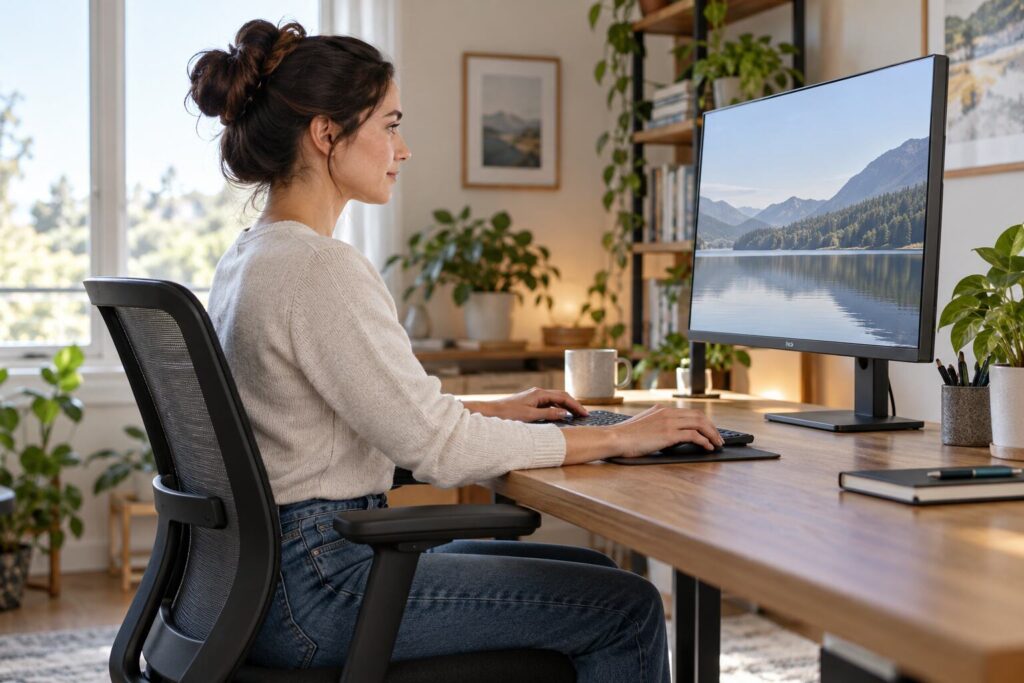
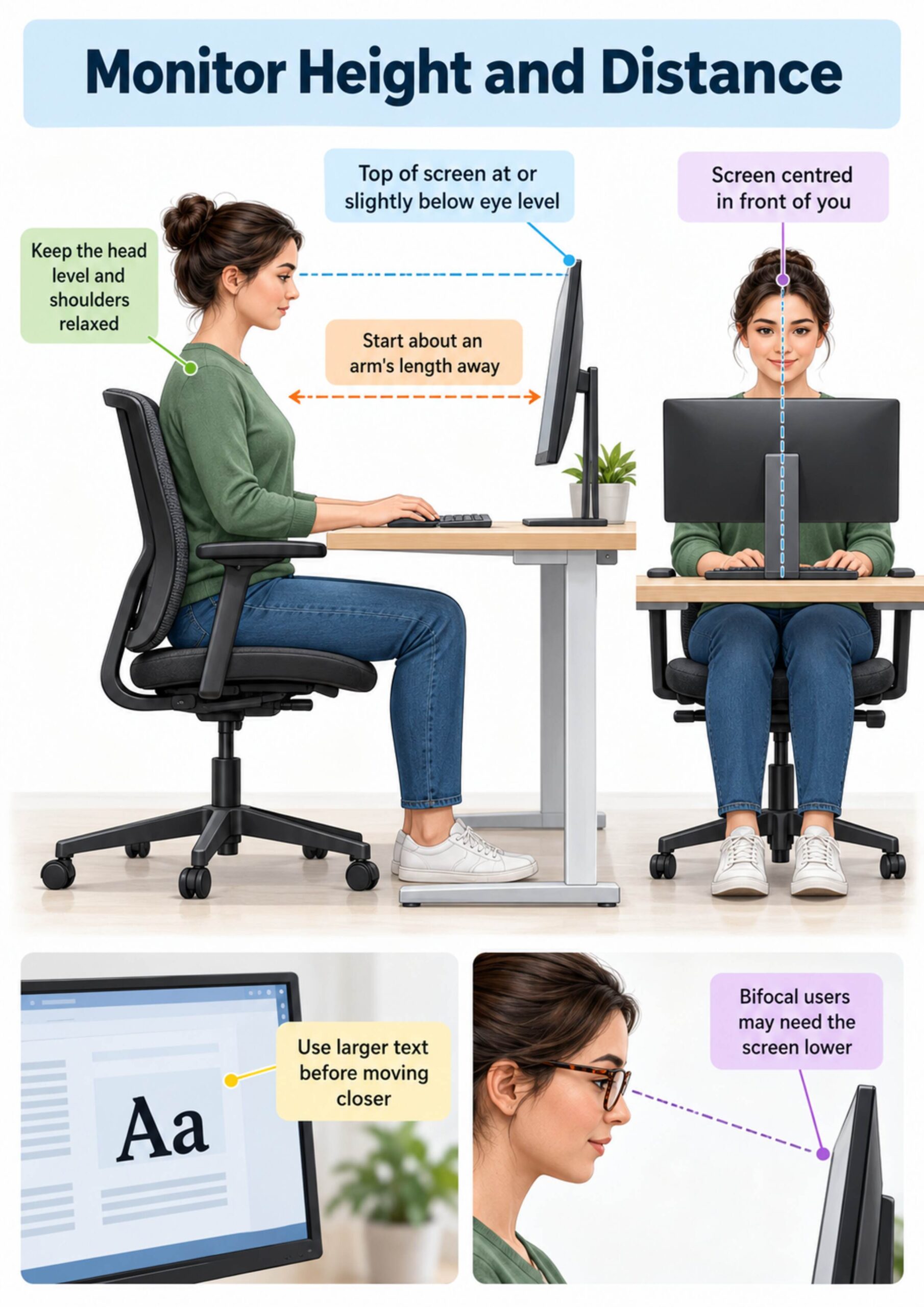
The best monitor setup for most desk work places the screen directly in front of you, with its top at or slightly below eye level and the display roughly an arm’s length away. Those are starting points: text size, screen size, vision correction, and the task should guide the final height and distance.
Use height and distance together
Monitor height controls the direction of your gaze, while distance affects how easily you can read without leaning forward. A screen can be at the “correct” height and still encourage neck strain if small text makes you crane toward it.
- Centre the main monitor in front of your torso
- Place the top edge at or slightly below eye level
- Start at about an arm’s length from the eyes
- Increase text size before moving the screen very close
- Keep the head level and shoulders relaxed
The OSHA monitor guidance describes a comfortable gaze angle below horizontal and advises keeping the top of the screen at or slightly below eye level. This arrangement reduces the need to hold the head tipped up or bent forward for long periods.
Set monitor height from your working posture
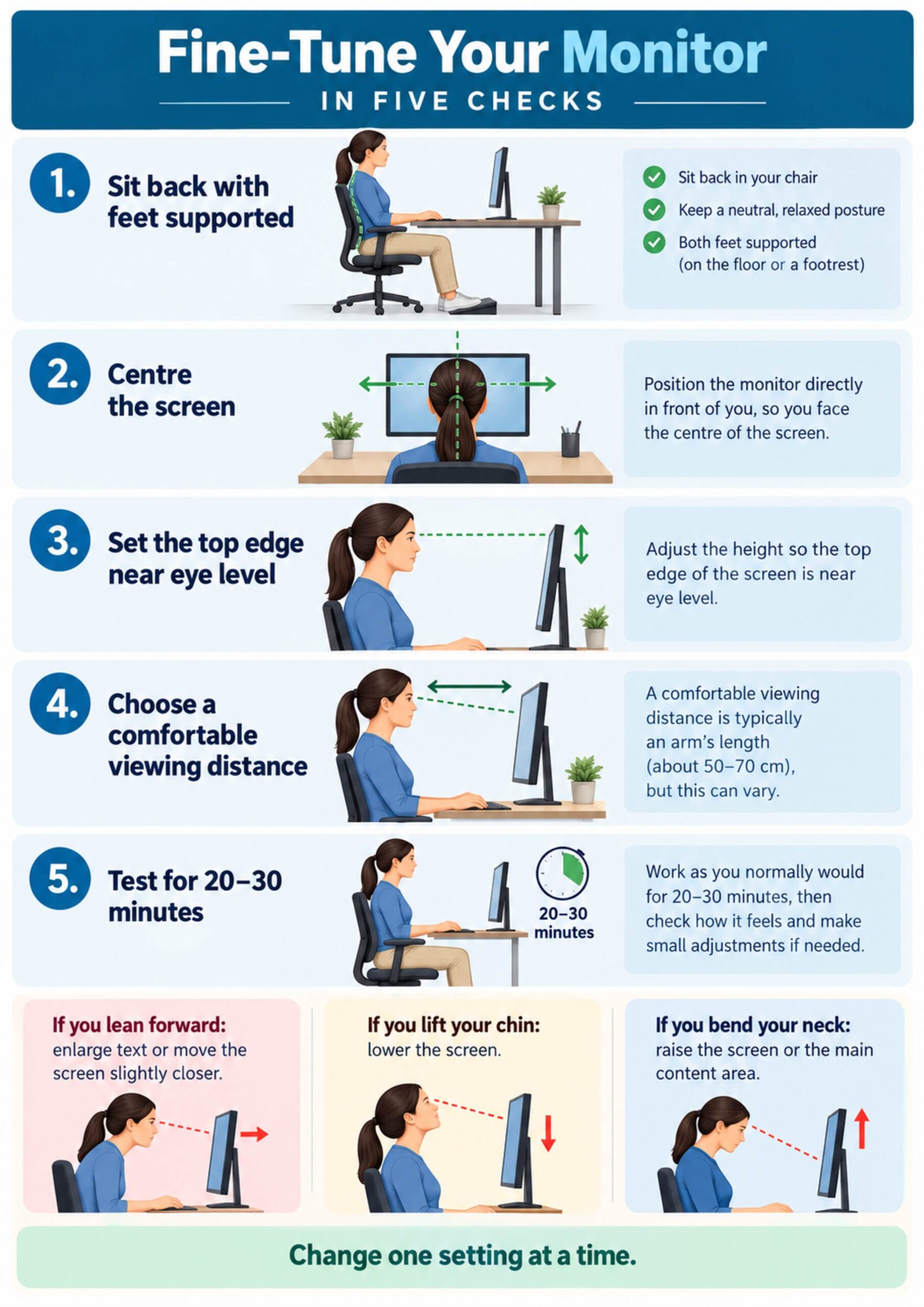
Adjust the chair first, then the screen. Sit back with the feet supported, forearms comfortable, shoulders relaxed, and head balanced over the trunk before deciding where the monitor belongs.
- Sit in the chair as you normally work rather than posing upright
- Support both feet on the floor or a footrest
- Set the keyboard near elbow height
- Face forward without lifting the chin
- Raise or lower the monitor until the upper edge sits near eye level
The UK Health and Safety Executive’s display-screen guidance similarly recommends the top of the screen at eye level and the monitor about an arm’s length away. A lower position may be more comfortable for people who look through the lower part of bifocal or progressive lenses.
Choose a comfortable viewing distance
OSHA gives a broad viewing-distance range of about 20 to 40 inches, while HSE uses the more practical cue of approximately an arm’s length. The exact point depends on display size, resolution, font size, vision, and how much detail the task requires.
- Move the monitor farther away if your eyes feel overworked at close range
- Move it slightly closer if you repeatedly lean forward despite readable text
- Use operating-system scaling to enlarge text and interface elements
- Keep frequently read windows near the centre of the screen
- Check that the screen remains clear without squinting
Centre the screen and main content
Repeated neck rotation often comes from placing the monitor to one side. Align the middle of the primary screen with the centre of your body and move the keyboard and mouse with it.
- Use the centred screen for the task that occupies most of the day
- Place the browser, document, or video window near the screen centre
- Keep input devices directly in front of the primary display
- Avoid working for hours from a laptop positioned beside a larger monitor
- Turn the chair rather than twisting the neck toward a side screen
Adjust large and ultrawide monitors
A large display does not automatically need to sit higher. The goal is to keep the most-used content within a comfortable downward gaze and to avoid scanning the full width with repeated end-range neck rotation.
- Increase viewing distance enough to see the working area comfortably
- Keep the primary application in the central portion
- Place secondary panels toward the side you use least
- Use window snapping to reduce unnecessary head travel
- Lower the screen if the upper content makes you lift your chin
Position two monitors by task priority
If both screens are used equally, place them close together with the inner edges centred in front of you. If one screen is primary, centre it and angle the secondary display beside it.
- Equal use: centre the join between the two screens
- Primary-secondary use: centre the primary monitor
- Match screen heights and tilt when practical
- Keep the displays close enough to avoid a wide visual gap
- Rotate the whole chair for sustained work on the secondary screen
Fine-tune the setup from symptom patterns
Use symptoms as feedback, not as proof that one setting caused the problem. Change one variable, work normally for a short period, and observe whether posture and comfort improve.
- You lift your chin: lower the monitor or the main window
- You bend your neck: raise the monitor or move content upward
- You lean forward: enlarge text or move the display slightly closer
- You turn repeatedly: centre the primary task
- Your eyes feel strained: check glare, contrast, scaling, and vision needs
| Problem observed | First adjustment | What to recheck |
|---|---|---|
| Chin lifted | Lower the screen | Top edge and main content near eye level |
| Head bent down | Raise the screen | Keyboard and document placement |
| Leaning toward text | Increase text scaling | Distance, clarity, and prescription glasses |
| Neck rotated | Centre the primary display | Chair, keyboard, and monitor alignment |
| Glare-driven posture | Reposition screen or light source | Reflections from windows and lamps |
Account for glasses and vision needs
Bifocal and progressive lenses can encourage the user to lift the chin to look through a specific part of the lens. Lowering the monitor, increasing text size, or discussing computer-specific lenses with an eye-care professional may reduce that compensation.
- Notice whether the chin rises to find a clear lens zone
- Try a slightly lower monitor position
- Increase font and interface size
- Keep reading material at a similar visual distance
- Arrange an eye examination if clarity remains poor
Control glare and lighting
Glare can make a person tilt, turn, or lean to see around reflections. OSHA notes that excessive lighting and screen glare may contribute to eyestrain, headache, and awkward working postures.
- Place the monitor perpendicular to bright windows when possible
- Use blinds or shades for changing daylight
- Avoid a bright lamp directly behind the display
- Clean the screen so smudges do not reduce contrast
- Match display brightness to the room rather than using maximum brightness
The OSHA workstation-environment guidance provides additional checks for glare, lighting, and visual comfort.
Use movement breaks instead of chasing perfect posture
No monitor position makes prolonged static work harmless. HSE recommends short breaks more often rather than infrequent long breaks, with the schedule matched to the task.
- Stand and walk for a brief task change
- Turn the head gently left and right within comfort
- Draw the shoulder blades back without shrugging
- Look across the room to vary visual focus
- Alternate reading, typing, calls, and standing tasks where practical
Perform a five-minute workstation check
Complete the setup in a consistent order so one adjustment does not undo another. Test the result during real work rather than deciding from a still photograph.
- Set chair height, back support, and foot support.
- Place the keyboard and mouse so the shoulders remain relaxed.
- Centre the monitor and set its top edge near eye level.
- Begin at about an arm’s length and enlarge text until it is easy to read.
- Work normally, then adjust one variable if you lean, lift the chin, or rotate.
Know when neck symptoms need assessment
Monitor adjustments can reduce unnecessary exposure to awkward positions, but they do not diagnose or treat every cause of neck pain. Seek professional assessment for symptoms after major trauma, progressive weakness, loss of hand coordination, spreading numbness, severe unremitting pain, fever, or other concerning changes.
- Do not keep changing equipment when symptoms are rapidly worsening
- Review work demands as well as screen position
- Check sleep, driving, lifting, and exercise exposures
- Discuss persistent visual problems with an eye-care professional
- Use a clinician or ergonomist for complex or disability-related setups
Conclusion
Set the main monitor directly ahead, place its top at or slightly below eye level, and begin around an arm’s length away. Then enlarge text, adjust for glasses and glare, test the setup during real work, and combine it with frequent movement rather than searching for one fixed “perfect” posture.
Frequently asked questions
Should the middle of the monitor be at eye level?
Usually no. Placing the top of the display near eye level lets the main viewing area sit slightly below horizontal, which is comfortable for many users.
How far should my monitor be from my eyes?
Start at roughly an arm’s length. OSHA gives a broad range of about 20 to 40 inches, but readable text and relaxed posture matter more than one exact distance.
Can a monitor be too high?
Yes. If you lift the chin or look upward for the main content, lower the display or move the active window down.
Can a monitor be too low?
Yes. A low screen may encourage sustained neck flexion, especially when the user is already seated high relative to the desk.
What monitor position is best for bifocals?
Many bifocal or progressive-lens users prefer a lower monitor so they can view it without tipping the head back. Individual lens design and prescription still matter.
Should I move the screen closer when text is small?
Increase text or display scaling first. If you still lean forward, move the monitor slightly closer while keeping the whole screen comfortable to view.
Where should a laptop screen be positioned?
For sustained work, use a stand to raise the laptop display and connect an external keyboard and mouse. A low laptop screen and attached keyboard force a compromise.
How should two monitors be arranged?
Centre the join if both are used equally. If one is primary, centre that monitor and place the secondary screen beside it at a small angle.
Will a monitor arm prevent neck pain?
A monitor arm makes adjustment easier, but it does not guarantee comfort. The final position still needs to match the user, task, vision, and chair setup.
How often should I change posture?
There is no single interval for every job. Use frequent brief changes before discomfort builds, and alternate visual focus and work tasks when practical.