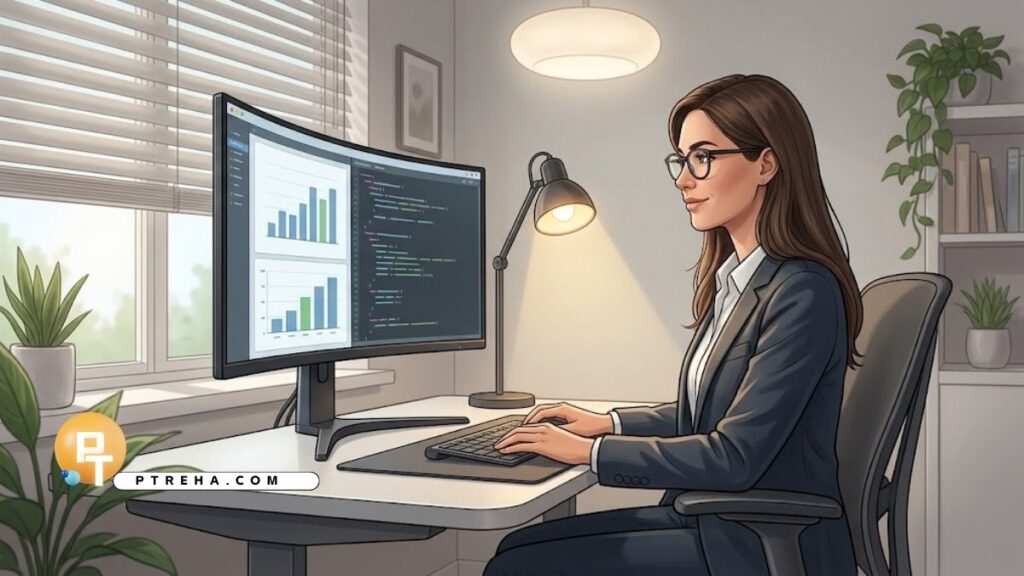
Computer work can become uncomfortable when excessive brightness, reflections, or poor room lighting force the eyes to work harder than necessary.
Lighting and glare control to prevent computer vision syndrome headaches focuses on creating a balanced visual environment that reduces eye strain, supports comfortable screen use, and makes prolonged computer tasks easier to tolerate.
Why Lighting Matters for Computer Vision Syndrome
Computer vision syndrome, also called digital eye strain, can involve headaches, eye fatigue, dryness, blurred vision, difficulty focusing, and discomfort around the eyes.
Lighting does not cause every case, but an unsuitable visual environment can increase symptoms.
Strong contrasts between a bright screen and a dark room, reflections on the display, and poorly positioned light sources can make viewing more demanding.
A useful goal is not to make the workspace as dark or bright as possible.
Instead, aim for comfortable, balanced illumination with minimal reflections and excessive contrast.
Common lighting-related contributors include:
- Bright sunlight falling directly on the screen
- Overhead lights reflected in the monitor
- A desk lamp aimed toward the user’s eyes
- Working in an otherwise dark room
- A screen that is much brighter than the surrounding environment
- Glossy screens producing visible reflections
- Windows positioned directly behind the monitor
- Strong light coming from behind the user
- Flickering or uncomfortable artificial lighting
- Excessive contrast between different areas of the workspace
Recognizing Glare-Related Headaches

Glare is unwanted or excessive light that interferes with comfortable vision.
It may appear as a bright reflection on the display, a strong light source within the field of view, or a large difference in brightness between the screen and its surroundings.
A person may notice symptoms after several hours of computer use rather than immediately.
Headache, squinting, tired eyes, and difficulty maintaining comfortable focus can be clues that the visual environment needs adjustment.
Signs that lighting may be contributing include:
- Squinting while reading the monitor
- Frequently changing screen brightness
- Moving the head to avoid reflections
- Feeling better after leaving the workstation
- Developing a headache during prolonged screen tasks
- Seeing a bright reflection on dark screen content
- Experiencing discomfort when looking toward a window
- Feeling that the monitor appears excessively bright
- Experiencing more symptoms at certain times of day
- Needing to increase concentration to read ordinary text
These symptoms are not specific to lighting.
Uncorrected vision problems, dry eyes, prolonged near work, poor workstation setup, and other factors can also contribute.
For persistent or unexplained symptoms, an eye-care professional can help determine whether vision correction or another eye problem is involved.
The American Academy of Ophthalmology provides patient information about eye health and digital eye strain.
How to Position the Monitor for Better Lighting
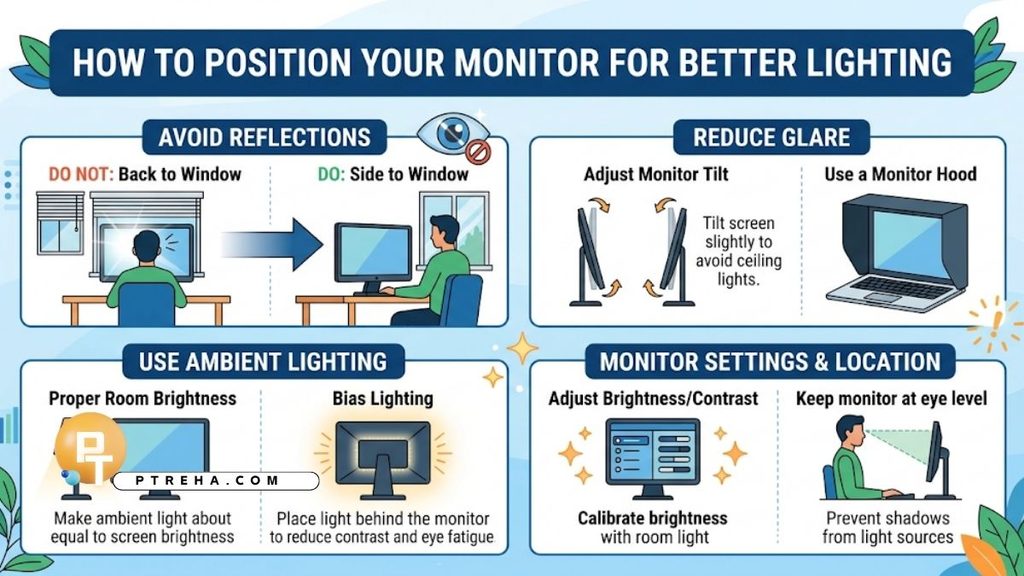
Monitor position has a major influence on glare.
A screen placed directly opposite a bright window may receive strong reflections, while a monitor facing a window can expose the user to excessive background brightness.
Whenever possible, position the monitor so that windows are to the side rather than directly in front of or behind the display.
Useful positioning strategies include:
- Place the monitor perpendicular to a window.
- Avoid positioning the screen directly beneath a strong ceiling light.
- Keep bright lamps outside the main visual field.
- Adjust blinds or curtains when sunlight creates reflections.
- Tilt the monitor slightly if this removes a reflection.
- Keep the display clean to reduce distracting surface reflections.
- Move the screen rather than constantly changing posture to avoid glare.
- Check the monitor from the normal sitting position, not while standing.
- Reassess the setup when sunlight changes during the day.
- Keep frequently viewed documents positioned to minimize unnecessary head movement.
For example, if a window is directly behind the monitor, sunlight may reflect from the screen toward the user’s eyes.
Moving the workstation so the window is beside the monitor can reduce this problem without requiring a darker room.
Controlling Natural Light
Natural light can make a workspace pleasant, but uncontrolled sunlight can create substantial glare.
The solution is usually light management rather than eliminating daylight completely.
Adjustable blinds, curtains, or shades can help control changing sunlight throughout the day.
Semi-transparent coverings may reduce harsh brightness while still allowing some daylight into the room.
Try these practical adjustments:
- Use blinds when direct sunlight reaches the screen.
- Close curtains partially rather than automatically darkening the entire room.
- Adjust the screen angle after changing the blinds.
- Observe the workspace at different times of day.
- Avoid placing the monitor where sunlight repeatedly crosses the display.
- Reduce bright reflections from nearby glass or glossy surfaces.
- Keep the area around the monitor visually comfortable.
- Use indirect daylight when possible.
- Avoid staring toward a bright window during screen breaks.
- Recheck glare after seasonal changes in sunlight.
A workstation that feels comfortable in the morning may become uncomfortable later when sunlight changes direction.
Lighting should therefore be treated as a dynamic part of workstation ergonomics.
Managing Artificial Lighting and Desk Lamps
Artificial lighting should provide enough illumination for the surrounding workspace without producing reflections or a bright source directly in the user’s field of view.
Ceiling fixtures can become problematic when their position creates reflections on the monitor.
A desk lamp can also cause glare if it shines directly toward the screen or user’s eyes.
For better control:
- Position desk lamps to illuminate documents rather than the screen.
- Use adjustable lamps when possible.
- Keep bright bulbs outside the direct line of sight.
- Redirect light toward the work surface.
- Avoid placing a lamp directly behind the monitor.
- Reduce unnecessary overhead lighting.
- Use multiple moderate light sources instead of one harsh source when appropriate.
- Check for reflections after changing lamp position.
- Avoid making the monitor dramatically brighter than the room.
- Replace uncomfortable or visibly flickering lighting equipment.
If printed material is frequently used beside the computer, a lamp can be useful.
However, the lamp should illuminate the document without producing a bright reflection on the monitor.
Adjusting Screen Brightness and Contrast
Screen brightness should generally be adjusted to match the surrounding environment rather than simply set to the highest available level.
A monitor that appears like a bright light source in a dim room can be uncomfortable.
Conversely, a screen that is too dim in a brightly lit room may require increased visual effort.
A practical adjustment sequence is:
- Set the room lighting to the level normally used during work.
- Open a typical document or webpage.
- Reduce excessive screen brightness.
- Check whether text remains easy to read.
- Look for reflections from windows and lamps.
- Adjust the room lighting before repeatedly increasing screen brightness.
- Recheck the screen when the room becomes brighter or darker.
- Use automatic brightness features if they provide comfortable results.
- Increase text size rather than relying on excessive brightness.
- Reassess comfort after several minutes of normal work.
There is no single screen-brightness setting that suits everyone.
Comfort depends on the display, room, task, vision, and individual sensitivity.
Reducing Glare From the Screen Surface
Glare can be caused by both the position of the light source and the surface of the display.
Glossy screens may show more obvious reflections from windows and lamps.
Before buying additional equipment, try changing the environment first.
Moving the monitor a small distance or changing the angle of a lamp may solve the problem.
Useful glare-control options include:
- Reposition the monitor.
- Reposition the light source.
- Adjust blinds or curtains.
- Tilt the display slightly when appropriate.
- Clean fingerprints and dust from the screen.
- Reduce reflections from glossy desks.
- Use a matte or low-reflection display when appropriate.
- Consider a high-quality anti-reflective screen treatment if needed.
- Remove unnecessary bright objects from the immediate visual field.
- Test the setup using both light and dark screen content.
Avoid relying automatically on tinted computer glasses or screen filters as the primary solution.
If glare remains severe, identify the actual source and modify the workstation first.
Creating a Balanced Workspace
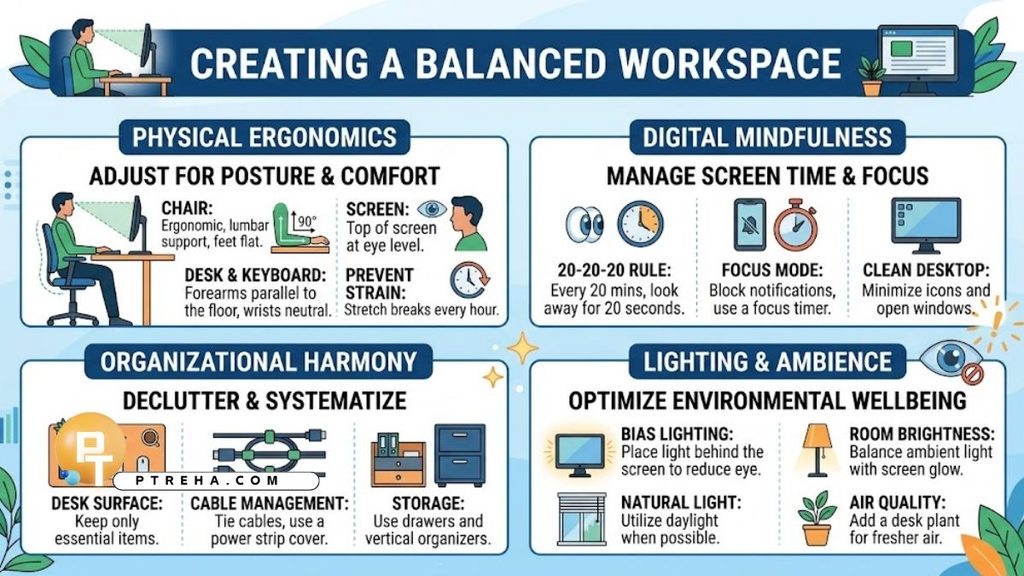
The most comfortable computer environment usually has balanced brightness rather than extreme darkness or brightness.
Working with a very bright monitor in a dark room can create a strong contrast between the display and its surroundings.
At the other extreme, intense ambient light can make the screen appear washed out and encourage the user to increase brightness unnecessarily.
A balanced workspace should include:
- Comfortable ambient illumination
- Controlled natural light
- Minimal screen reflections
- Appropriate screen brightness
- Readable text
- No bright lamp directly in the visual field
- A monitor positioned away from direct window reflections
- Comfortable viewing distance
- Adequate contrast for the task
- Regular visual breaks
The goal is to make the screen easy to view without making the eyes constantly adapt between very different brightness levels.
Lighting, Posture, and Breaks Work Together
Lighting should not be considered separately from the rest of the workstation.
A person may continue experiencing headaches if glare is corrected but the monitor is poorly positioned, the viewing distance is uncomfortable, or prolonged near work continues without breaks.
An ergonomic computer routine can combine lighting management with:
- Comfortable upright sitting
- Appropriate monitor height
- A suitable viewing distance
- Relaxed shoulders
- Supported forearms
- Frequent changes in visual focus
- Regular blinking
- Adequate hydration
- Appropriate corrective lenses when prescribed
- Short breaks from continuous screen viewing
The 20-20-20 rule is commonly recommended as a simple way to interrupt prolonged near viewing: periodically look at something approximately 20 feet away for about 20 seconds.
The American Optometric Association discusses digital eye strain and practical strategies for reducing symptoms in its digital eye strain guidance.
Breaks should not be viewed as a replacement for appropriate lighting.
They are complementary strategies.
A Practical Lighting Check
A quick workstation assessment can often identify obvious problems within a few minutes.
Stand or sit in your normal working position and look at the monitor.
Check whether you can see a window, lamp, ceiling fixture, or bright reflection on the display.
Then ask:
- Is sunlight reflected on the screen?
- Is a light source directly behind the monitor?
- Is the room much darker than the screen?
- Is the screen much darker than the room?
- Do you squint to read?
- Can you reduce glare by changing the monitor position?
- Is the desk lamp illuminating the screen instead of the work?
- Does the monitor remain comfortable when viewing typical documents?
- Does the lighting change substantially throughout the day?
- Do symptoms improve after leaving the workstation?
Make one adjustment at a time when possible.
This makes it easier to identify which change actually improves comfort.
Lighting Setup Examples
Different workspaces require different solutions.
The following examples show how simple environmental changes can address common problems of computer screen headache:;
| Workspace problem | Likely lighting issue | Practical adjustment |
|---|---|---|
| Window directly behind monitor | Reflections on display | Move monitor or workstation so window is beside it |
| Bright window directly in front | Excessive background brightness | Use blinds or reposition the desk |
| Ceiling light reflected on screen | Overhead glare | Change monitor position or lighting direction |
| Dark room with bright monitor | High brightness contrast | Add comfortable ambient lighting and reduce screen brightness |
| Desk lamp reflected on screen | Direct task-light glare | Aim lamp at documents instead |
| Sunlight changes during the day | Variable glare | Use adjustable blinds or curtains |
| Glossy display shows reflections | Surface glare | Reposition screen or consider a low-reflection display |
| Screen appears too dim | Excessive ambient brightness | Reduce nearby glare or adjust screen brightness moderately |
| Bright objects beside monitor | Distracting visual contrast | Remove or reposition them |
| Headache occurs after long sessions | Multiple contributing factors | Review lighting, breaks, vision, and workstation ergonomics |
When Headaches Need Further Assessment
Lighting adjustments are useful, but recurring headaches should not automatically be attributed to computer vision syndrome.
Consider professional assessment when symptoms are frequent, worsening, unusually severe, or present even when computer use is limited.
Seek prompt medical attention for a sudden severe headache, new neurological symptoms, significant vision loss, double vision, severe eye pain, or other unusual symptoms.
An eye examination may be particularly appropriate when headaches are accompanied by persistent blurred vision, difficulty focusing, eye discomfort, or a need to move unusually close to the screen.
The National Eye Institute also provides general educational information about eye health and vision problems.
Conclusion
Effective lighting and glare control to prevent computer vision syndrome headaches is mainly about creating a visually balanced workstation.
Position the monitor away from direct reflections, manage daylight, direct lamps toward the work surface, adjust screen brightness to the room, and avoid large differences in brightness between the display and its surroundings.
Lighting changes work best when combined with appropriate monitor positioning, regular visual breaks, comfortable posture, blinking, and proper vision correction.
If headaches or visual symptoms continue despite sensible workstation changes, an eye-care or medical assessment can help identify other contributing factors.
Frequently Asked Questions
Can poor lighting cause computer vision syndrome headaches?
Poor lighting can contribute to visual discomfort and may aggravate symptoms associated with prolonged computer use.
Bright reflections, excessive contrast, and inadequate ambient lighting can make screen viewing less comfortable.
However, headaches have many possible causes.
Persistent headaches should not automatically be attributed to workplace lighting.
Should I work in a dark room when using a computer?
A completely dark room is generally not necessary and may create a large brightness difference between the monitor and its surroundings.
Comfortable ambient lighting can make the overall visual environment more balanced.
The room does not need to be brightly illuminated.
Aim for enough comfortable background light to avoid having the screen appear dramatically brighter than the surrounding area.
Where should my computer monitor face?
A practical arrangement is to position the monitor so windows are to the side rather than directly in front of or behind it.
This can reduce direct sunlight and reflected glare.
The best position also depends on the room and the location of artificial lighting.
Check the display from your normal sitting position for visible reflections.
Should I lower my monitor brightness?
If the monitor looks excessively bright compared with the surrounding room, reducing its brightness may improve comfort.
The correct setting depends on ambient lighting, the display, the task, and individual visual needs.
Do not reduce brightness so much that text becomes difficult to read.
Poor readability can also increase visual effort.
Do anti-glare screen protectors prevent headaches?
Anti-glare products can reduce reflections in some situations, but they are not a universal treatment for computer-related headaches.
The source of glare should first be addressed through monitor and lighting position.
If a screen protector reduces clarity or makes text appear less sharp, it may not be beneficial for that particular setup.
Is natural light better than artificial light for computer work?
Natural light can be comfortable when it is controlled, but direct sunlight can produce significant glare.
Artificial lighting can also be comfortable when it is appropriately positioned and does not create reflections.
The important factor is the quality and balance of the visual environment rather than whether the light is natural or artificial.
Should a desk lamp point at my computer screen?
Usually, a desk lamp should illuminate the documents or work surface rather than shine directly onto the screen.
Direct light can create reflections and make the display harder to see.
Position the lamp so the task area is illuminated while the bulb remains outside the user’s direct line of sight.
Can changing lighting alone stop computer-related headaches?
Lighting changes may reduce symptoms when glare or excessive brightness is contributing to discomfort, but they cannot address every cause of headache.
Monitor position, prolonged near work, uncorrected vision problems, dry eyes, posture, sleep, and other factors may also be relevant.
How often should I adjust my computer lighting?
Lighting should be reassessed whenever the environment changes significantly.
For example, sunlight can change throughout the day, and a workspace may require different adjustments in bright and dim conditions.
A quick glare check before a long work session can help identify obvious reflections before symptoms develop.
When should I see an eye-care professional about computer-related headaches?
Consider an eye examination if headaches or visual discomfort are recurring, persistent, worsening, or associated with blurred vision, focusing difficulty, eye pain, or other visual changes.
Urgent medical assessment is appropriate for sudden severe headache, sudden vision loss, double vision, severe eye pain, or neurological symptoms rather than simply adjusting the workstation.