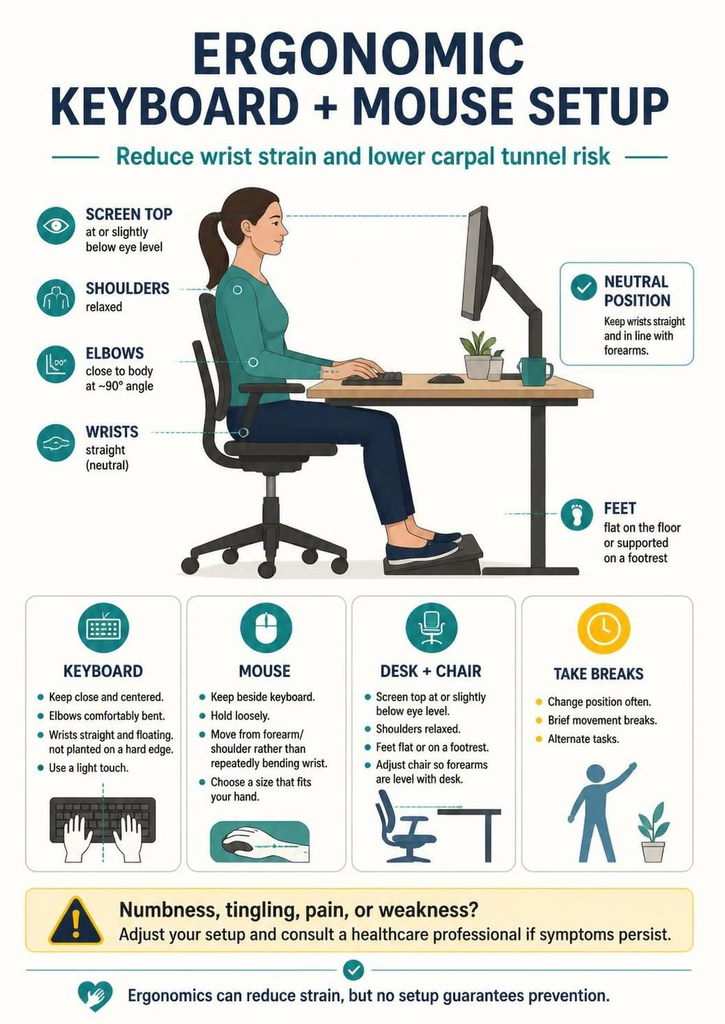
An ergonomic keyboard and mouse setup can reduce sustained wrist extension, side-bending, reaching, and gripping, but it cannot guarantee that carpal tunnel syndrome will be avoided. Start with the devices close to the body, wrists in line with the forearms, relaxed shoulders, and work habits that limit prolonged repetition.
What an ergonomic setup should accomplish
The goal is to make the neutral position easy to maintain without bracing the wrists against a hard edge. The keyboard, mouse, chair, and desk must work as one system rather than being adjusted separately.
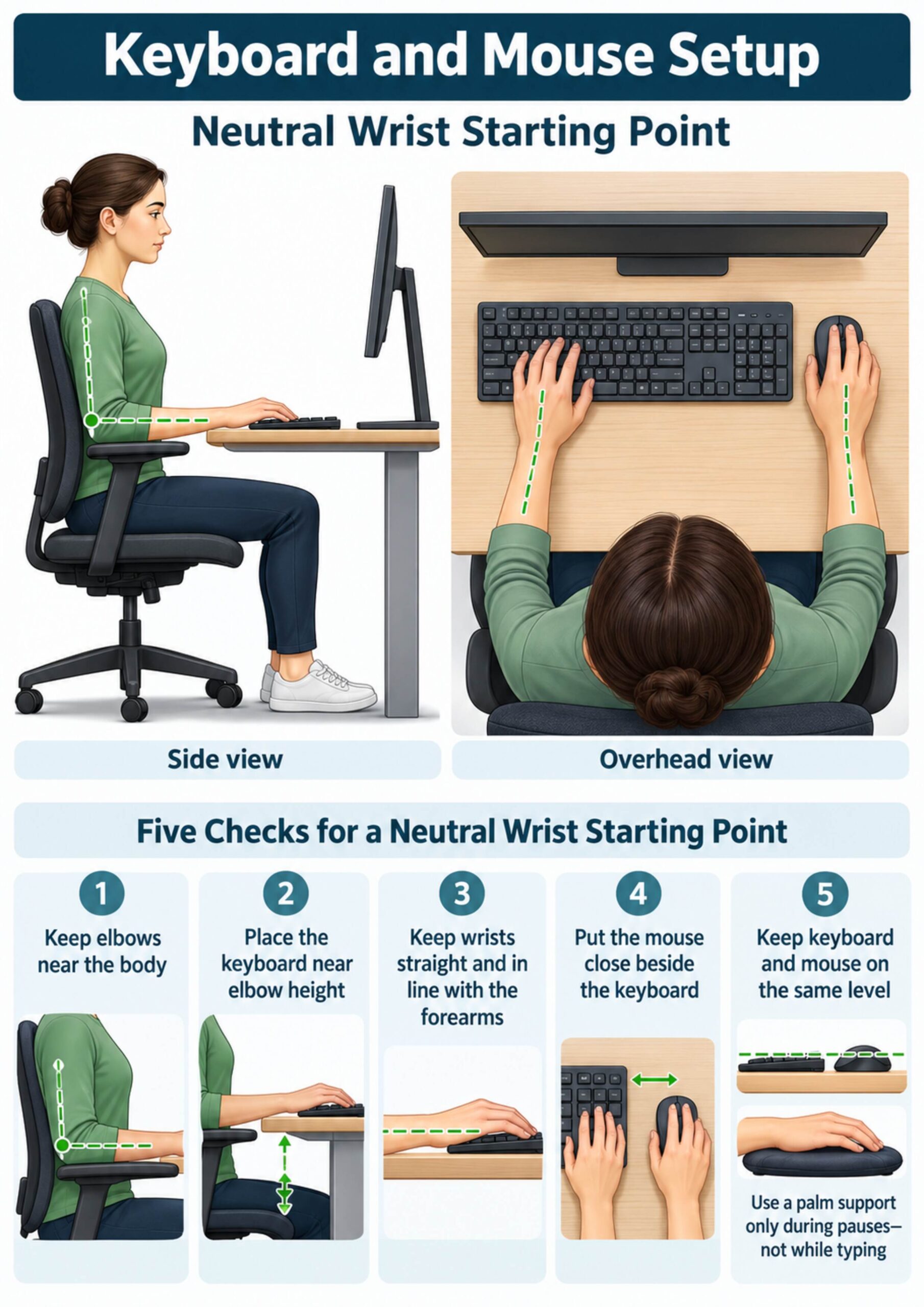
- Keep elbows close to the torso
- Place forearms roughly parallel to the floor
- Align hands and wrists with the forearms
- Keep the keyboard and mouse at the same level
- Bring the mouse close enough to avoid shoulder reaching
The OSHA keyboard guidance recommends adjusting keyboard or chair height to reduce awkward wrist angles and maintain a neutral wrist posture.
Set chair and desk height first
Sit back with the feet supported and shoulders relaxed before positioning the input devices. If the desk is fixed and too high, raise the chair and add a footrest rather than lifting the shoulders all day.
- Support both feet on the floor or a stable footrest
- Keep shoulders down rather than shrugged
- Place elbows near the sides of the body
- Adjust armrests so they support without pushing the shoulders up
- Leave enough thigh clearance under the work surface
Position the keyboard near elbow height
Place the keyboard directly in front of the body and close enough that the elbows do not move forward. A thick keyboard, raised rear feet, or high desk can push the wrist into extension.
- Start with the keyboard flat or with minimal positive tilt
- Centre the frequently used keys in front of the torso
- Keep wrists floating lightly while typing
- Use light keystrokes instead of striking the keys
- Move the keyboard closer if the shoulders drift forward
Keep the mouse close and on the same plane
A mouse placed far to the side combines shoulder abduction with repeated wrist motion. OSHA’s pointer and mouse guidance recommends a position that permits a straight, neutral wrist.
- Place the mouse immediately beside the keyboard
- Keep it at approximately the same height as the keys
- Use the whole arm for larger cursor movements
- Relax the fingers rather than gripping the shell
- Remove desk clutter that blocks a close mouse position
Choose a device that fits the hand and task
Shape matters only if it reduces effort and awkward posture in the actual task. A vertical mouse, trackball, central pointing device, compact keyboard, or split keyboard may help one user and frustrate another.
- The mouse should not force the fingers to spread widely
- Buttons should activate without a hard pinch
- A compact keyboard can reduce the reach to the mouse
- A split keyboard may reduce forearm rotation for some users
- Test a new device during normal work before committing
Use palm supports correctly
A palm support is mainly for pauses, not for pressing the wrist into the pad while typing or mousing. Resting directly over the carpal tunnel can create local pressure and may also anchor the hand while the fingers reach.
- Match the support height to the front edge of the keyboard
- Rest the heel of the palm rather than the wrist crease
- Keep the wrists free during active typing
- Avoid a hard desk edge beneath the forearms
- Remove the support if it increases pressure or tingling
OSHA’s wrist and palm support guidance emphasizes adjusting the workstation first so the wrist can remain in line.
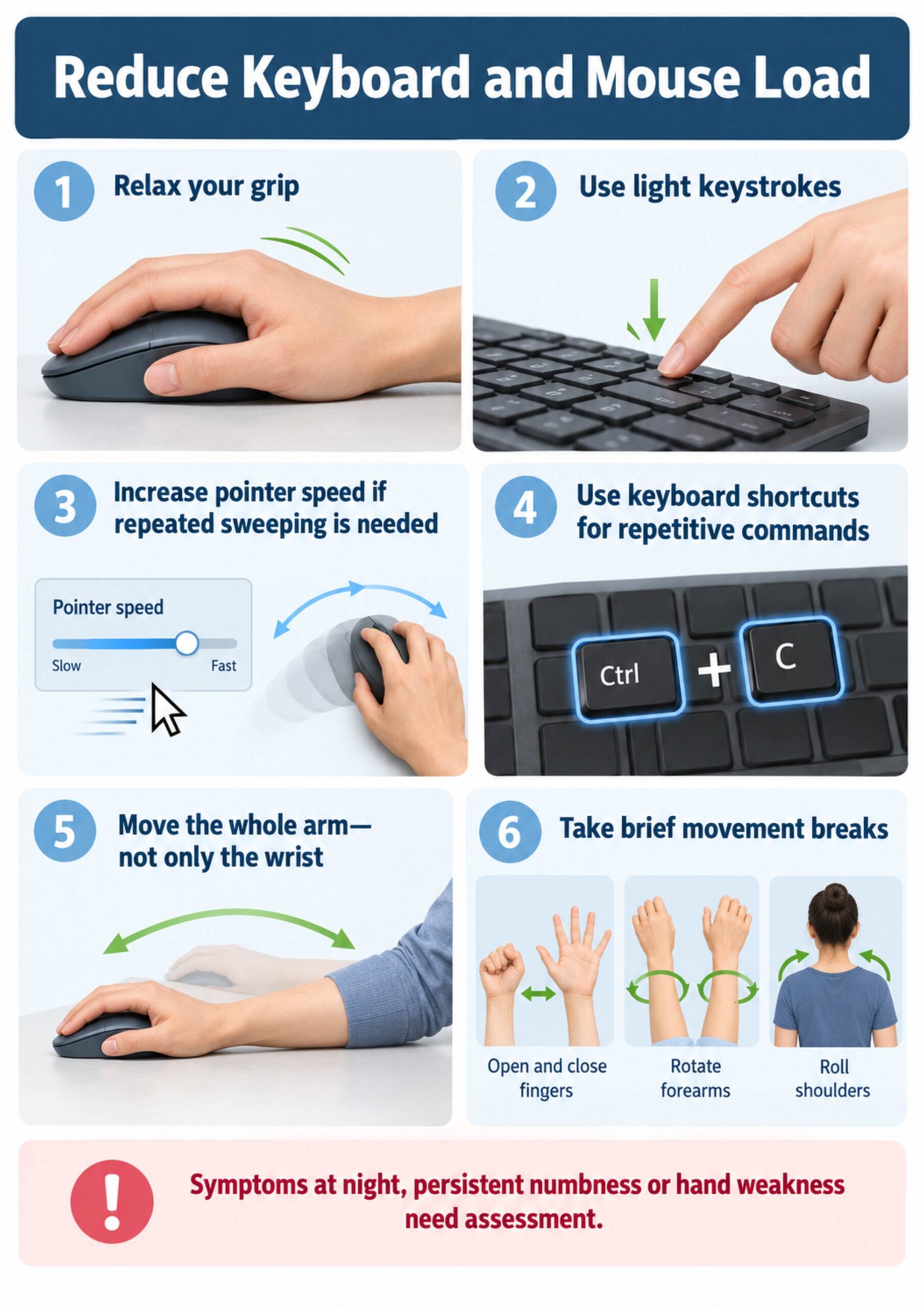
Reduce repetition through settings and shortcuts
Device placement is only part of exposure. Software settings and work methods can reduce the number and size of repeated movements without slowing the task.
- Increase pointer speed if the mouse repeatedly sweeps across the desk
- Use keyboard shortcuts for frequent commands
- Enable scrolling options that require less finger force
- Alternate hands for simple mouse tasks if practical
- Use templates, macros, or voice input for highly repetitive work
Compare common keyboard and mouse options
| Option | Potential advantage | Practical limitation |
|---|---|---|
| Compact keyboard | Brings mouse closer | May remove a dedicated number pad |
| Split keyboard | May reduce wrist deviation and forearm rotation | Requires adaptation and correct spacing |
| Vertical mouse | Changes forearm posture | Does not automatically reduce grip or repetition |
| Trackball | Reduces whole-device movement | Increases local finger or thumb use |
| Central pointing device | Reduces side reach | May not suit precision tasks |
Choose equipment by the movement it changes, not by the word “ergonomic” on the package. A short trial with the real workload is more informative than a product shape alone.
Add brief hand and upper-body movement
Static muscle activity and repetition accumulate even in a well-arranged workstation. Use brief changes before discomfort builds rather than waiting for a long break.
- Open and close the fingers gently
- Rotate the forearms within a comfortable range
- Roll the shoulders slowly without forcing
- Stand and walk during a task change
- Switch between typing, reading, calls, and other work
Use symptoms to guide one change at a time
Do not change the chair, keyboard, mouse, and workload simultaneously. Adjust one factor, work normally, and note whether reaching, wrist position, effort, or symptoms improve.
- Wrist bent upward: lower the keyboard or raise the chair
- Mouse shoulder fatigue: move the device closer
- Hard grip: try a better-fitting mouse and lower click force
- Finger fatigue: reduce keystroke force and repetition
- Desk-edge pressure: reposition equipment and pad the edge
Understand what ergonomics cannot determine
Carpal tunnel syndrome is median-nerve compression at the wrist and can involve several contributing factors. Keyboard or mouse discomfort does not confirm the diagnosis, and a neutral setup cannot eliminate every medical or occupational risk.
- Numbness or tingling may have causes outside the wrist
- Neck, elbow, tendon, or joint problems can mimic hand symptoms
- Night symptoms may occur even when the desk feels comfortable
- Workload and recovery matter as much as device design
- Clinical examination may be needed to identify the source
A CDC-hosted study of wrist posture and carpal tunnel pressure while typing supports minimizing non-neutral wrist positions, but posture is only one part of risk management.
Know when hand symptoms need assessment
Arrange clinical assessment for persistent numbness, tingling that wakes you at night, loss of dexterity, dropping objects, or progressive hand weakness. The NINDS carpal tunnel information describes gradual tingling or numbness, often affecting the thumb, index, and middle fingers, as well as possible weakness.
- Do not rely on equipment changes when weakness is progressing
- Seek urgent care after major injury or sudden neurological loss
- Report workplace symptoms through the appropriate health process
- Bring a description of timing, distribution, and provoking tasks
- Photograph the workstation if a clinician or ergonomist will review it
Conclusion
Place the keyboard near elbow height, keep wrists in line with the forearms, and position the mouse close beside the keyboard on the same surface. Combine those changes with light force, fewer repetitive commands, movement breaks, and timely assessment of persistent numbness or weakness.
Frequently asked questions
Can an ergonomic keyboard prevent carpal tunnel syndrome?
No keyboard can guarantee prevention. A suitable device may reduce awkward wrist posture or reach, but workload, health factors, and individual anatomy also matter.
Should the keyboard be flat or tilted?
Start flat or with minimal tilt. A raised rear edge often increases wrist extension, especially when the work surface is already high.
Where should the mouse sit?
Place it directly beside the keyboard at the same approximate height, close enough that the elbow stays near the torso.
Is a vertical mouse always better?
No. It changes forearm position but may still require gripping, clicking, and repetition. Comfort and task performance should be tested.
Should my wrists rest while typing?
Keep the hands moving freely during typing. Use a palm support mainly during pauses and avoid pressure directly on the wrist crease.
Can I use a laptop keyboard all day?
Sustained laptop work often compromises either screen height or hand position. An external keyboard and mouse allow the screen and input devices to be adjusted separately.
How can I reduce mouse movement?
Increase pointer speed gradually, use shortcuts, keep the mouse close, and organize windows so repeated long sweeps are unnecessary.
Are hand stretches enough to prevent symptoms?
No. Gentle movement can vary muscle activity, but it cannot compensate for excessive repetition, force, or an underlying nerve problem.
Which fingers are commonly affected in carpal tunnel syndrome?
Symptoms often involve the thumb, index, middle, and part of the ring finger. A clinician should assess persistent or unclear patterns.
When should I seek help?
Seek assessment for persistent numbness, frequent night symptoms, loss of coordination, dropping objects, or progressive hand weakness.