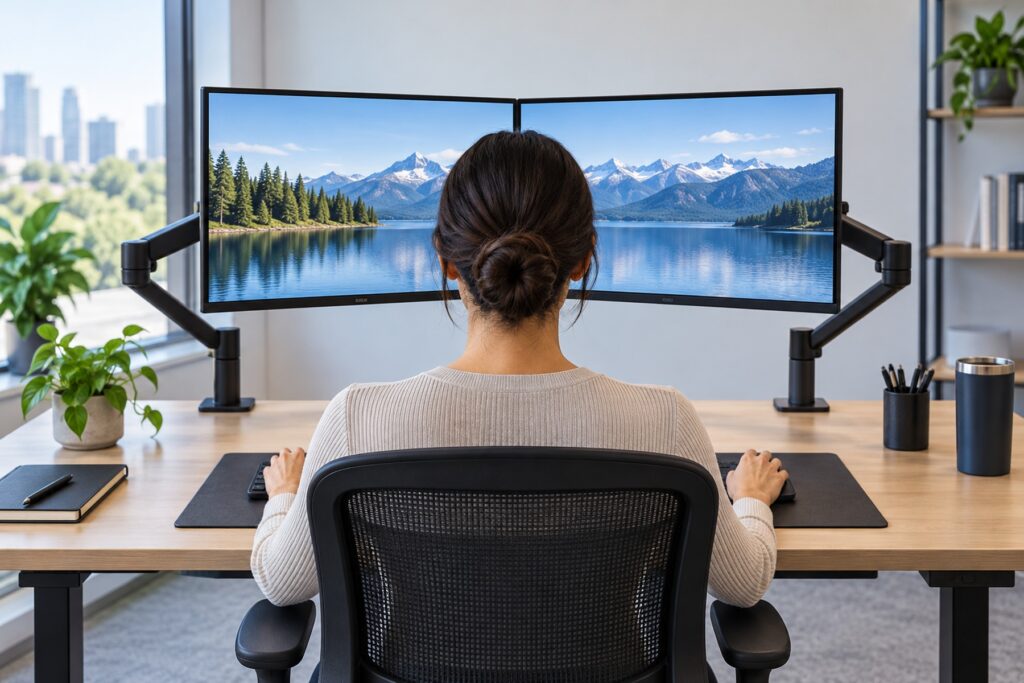
A dual-monitor setup can reduce repeated neck rotation when the screen used most is placed directly in front of you and the second screen is kept close, matched in height, and angled inward. The right layout depends on whether you use both monitors equally or one is clearly primary.
Why dual monitors can strain the neck
Two monitors are useful because they keep more information visible, but their total width can encourage long periods with the head turned. The problem is usually sustained or repeated rotation combined with a task that stays on the outer part of one screen.
- A wide gap between screens increases the visual travel between tasks.
- An off-center primary screen keeps the head and torso rotated.
- Different screen heights can add repeated side bending or nodding.
- Text that is too small encourages leaning forward.
The goal is not to keep the neck motionless. It is to reduce unnecessary end-range or prolonged rotation while allowing comfortable movement through the day.
Choose the layout by actual screen use
Start by identifying where your eyes spend most working time. A calendar, chat window, or reference document that is open all day may be secondary even if you glance at it often.
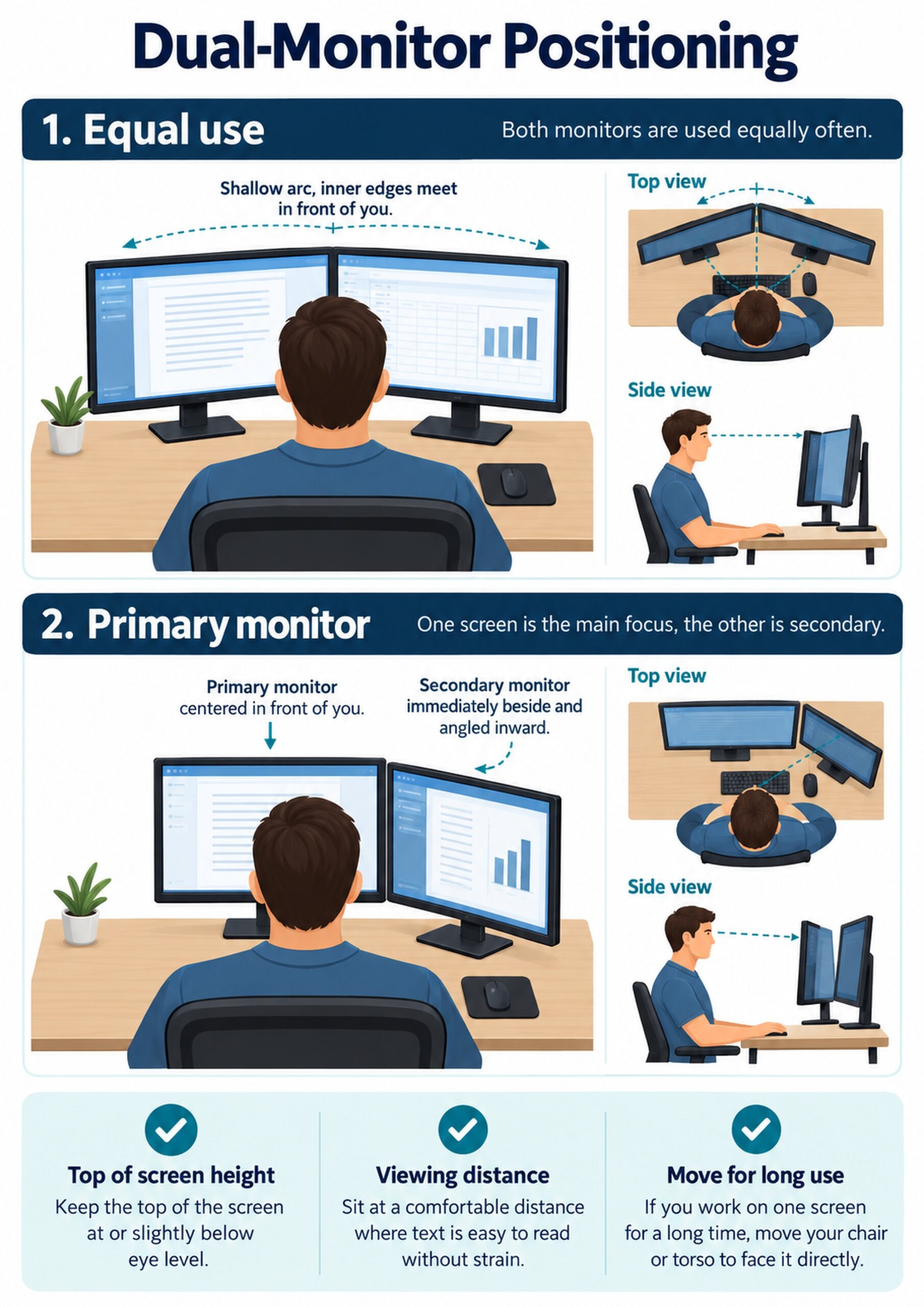
- Equal use: center the meeting point between the two inner bezels in front of you.
- Primary and secondary: center the primary monitor directly in front and place the secondary immediately beside it.
- Temporary second screen: keep the main screen centered and bring the second screen close only when needed.
- Shared screen: position it so the regular user is not forced into sustained rotation.
This decision is more useful than copying a symmetrical setup that does not match your work.
Set up two equally used monitors
When both screens receive similar attention, place them side by side with the inner edges touching or as close as the stands allow. The joint between the screens should line up with the center of your body.
- Match the monitor heights so the same visual line continues across both screens.
- Angle both screens inward to form a shallow arc around your viewing position.
- Keep the screens at a similar distance from your eyes.
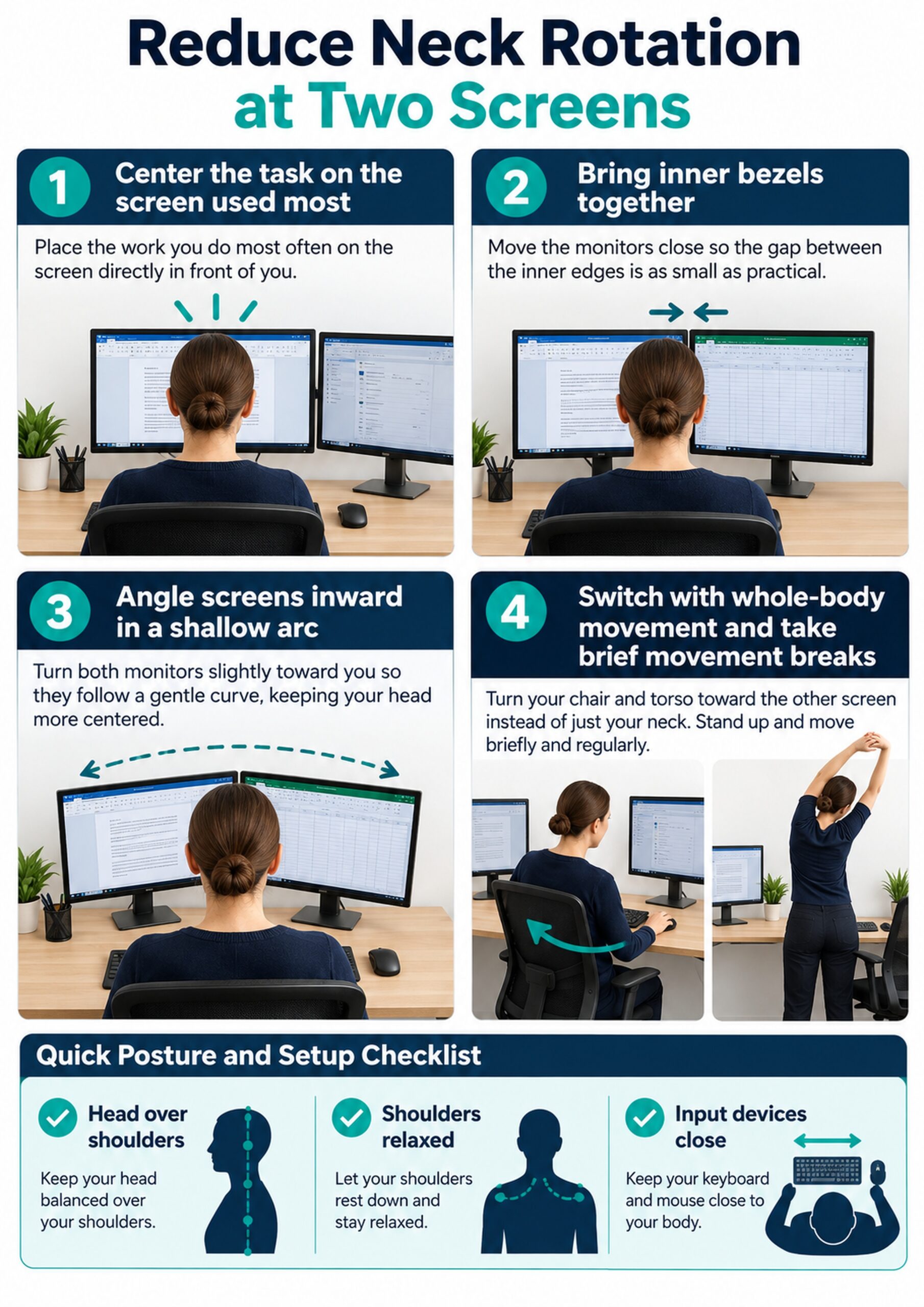
- Move frequently used windows toward the inner half of each display.
Your head will still turn slightly. The practical aim is to keep that turn small and shared rather than making one side responsible for most of the work.
Set up a primary and secondary monitor
If one screen contains most of your typing, design, coding, or clinical documentation, center that monitor with your chair, keyboard, and body. Place the secondary screen directly beside it and angle it toward you.
- Keep the primary task in the central area of the main screen.
- Use the secondary monitor for brief reference tasks.
- Bring the inner edges together to reduce the viewing sweep.
- When the secondary task becomes prolonged, turn the chair and torso to face it.
The OSHA monitor-positioning guidance recommends placing the active monitor directly in front so the head, neck, and torso face forward.
Match height, tilt, and viewing distance
Both monitors should support the same relaxed head position. A useful starting point is to place the top of the visible screen at or slightly below eye level, then adjust for glasses, screen size, and the part of the display you use most.
- Lower the screens if you wear progressive lenses and otherwise tip your head back.
- Raise small laptops on a stand and use a separate keyboard and mouse.
- Keep text readable without leaning forward.
- Tilt the displays to reduce glare while keeping the images clear.
The OSHA computer workstation eTool uses balanced head and neck alignment with the torso as a central setup check. Viewing distance is individual; text clarity and relaxed posture matter more than a single fixed number.
Center the keyboard, mouse, and chair
Monitor placement works only if the input devices support the same orientation. A keyboard positioned between two monitors can be reasonable for equal use, while a primary-monitor workflow calls for the keyboard to be centered with that screen.
- Place the keyboard so the home keys line up with your main task.
- Keep the mouse close to avoid reaching and shoulder elevation.
- Align the chair with the primary visual target.
- Use keyboard shortcuts to move windows without repeatedly reaching for the mouse.
If the chair faces one direction and the keyboard or screen faces another, the body often compensates with trunk or neck rotation.
Arrange software to reduce visual travel
Ergonomics includes the position of windows on each display. A well-mounted monitor still creates unnecessary rotation if the active content sits at the far outer edge.
- Place frequently compared windows on the adjacent inner halves of the screens.
- Keep menus, timelines, or tool panels close to the screen junction when practical.
- Increase text size before moving the displays closer than is comfortable.
- Use virtual desktops or window snapping to simplify visual clutter.
For tasks that require continuous comparison, consider one larger centered display or portrait orientation if that fits the content better.
Dual-monitor setup comparison
| Work pattern | Best starting layout | Body alignment | Common mistake |
|---|---|---|---|
| Equal use | Inner bezels meet at body midline | Small turns to either side | Leaving a wide center gap |
| Primary + secondary | Primary centered, secondary beside it | Face primary for most work | Centering the gap despite unequal use |
| Laptop + monitor | External display centered; laptop close beside it | Use separate input devices | Looking down and sideways at the laptop |
| Long task on secondary | Rotate chair and torso toward that screen | Move as one unit | Twisting only the neck |
- Choose the row that matches the longest work blocks.
- Reconfigure the setup when task priorities change.
- Do not preserve symmetry when it increases time spent rotated.
Use movement instead of holding one perfect posture
No monitor arrangement removes the need to move. Static sitting can become uncomfortable even when every device is placed well.
- Shift your gaze before turning your head fully.
- Turn the chair and trunk for sustained work on the side screen.
- Stand, walk, or change tasks briefly at regular opportunities.
- Use natural breaks such as calls, printing, or saving work as movement cues.
Movement should feel easy rather than corrective or forced. Brief, frequent changes are usually more practical than a long stretch session after hours of stillness.
Practical neck and shoulder exercises
Exercises can help restore movement and load tolerance, but they do not compensate for a screen that remains off-center all day. Adjust the workstation first, then use comfortable movement to vary tissue loading.
- Gentle neck rotation: turn within a comfortable range to each side without forcing the end position.
- Chin nod: make a small nod while keeping the back of the neck long.
- Scapular movement: slowly raise, lower, and relax the shoulders.
- Thoracic rotation: turn the rib cage with the arms relaxed and pelvis supported.
Stop an exercise that causes dizziness, spreading pain, numbness, or weakness, and seek assessment if these symptoms persist.
Troubleshoot persistent discomfort
Do not assume that every symptom comes from monitor position. Vision correction, workload, stress, sleep, previous injury, and other health conditions can change tolerance.
- If pain is one-sided, measure how long you spend on each screen.
- If you lean forward, increase text size and review viewing distance.
- If shoulders tense, check mouse reach, arm support, and desk height.
- If symptoms persist after reasonable changes, arrange a clinical or workplace ergonomic assessment.
The OSHA workstation evaluation checklist provides a structured way to review head, neck, screen, chair, and input-device positioning.
Conclusion
A dual-monitor setup reduces unnecessary neck rotation when it follows the work: center two equally used screens at their meeting point, or center the primary screen when use is unequal. Match heights and distances, bring the displays close, organize software near the inner edges, and move the chair and torso for longer side-screen tasks.
Frequently asked questions
Should two monitors be centered as a pair?
Center them as a pair only when you use both about equally. If one screen is primary, center that screen with your body and place the secondary display beside it.
How close should the two monitors be?
Keep the inner bezels touching or as close as the stands allow. A smaller gap reduces the distance your eyes and head travel between related tasks.
Should dual monitors be angled?
Yes, a shallow inward angle helps each screen face your viewing position. Avoid an extreme V shape that makes the outer edges difficult to view.
Should both screens be the same height?
Matching visible screen heights is a useful starting point because it reduces repeated vertical head movement. Adjust for different screen sizes and your visual needs.
Where should the keyboard sit?
Center the keyboard with the primary screen for unequal use. For equal use, align it with the meeting point between the monitors.
Can a laptop be the second monitor?
Yes, but raise it near the external screen height and use a separate keyboard and mouse. Keep it close so you do not repeatedly look down and sideways.
Is one large monitor better for the neck?
It can be if it keeps the main work centered and reduces outer-edge viewing. A very wide display can still create rotation if active content is placed at the extremes.
How do I work on the secondary screen for a long time?
Turn the chair and torso so you face that screen more directly, or temporarily make it the centered primary display. Avoid holding the trunk forward while only the neck turns.
Will an ergonomic setup prevent all neck pain?
No. It can reduce avoidable exposure to sustained rotation, but symptoms also depend on workload, movement, vision, health, and individual tolerance.
When should neck symptoms be assessed?
Seek assessment for persistent or worsening pain, symptoms after trauma, or pain with weakness, numbness, severe headache, dizziness, balance change, or other neurological signs.