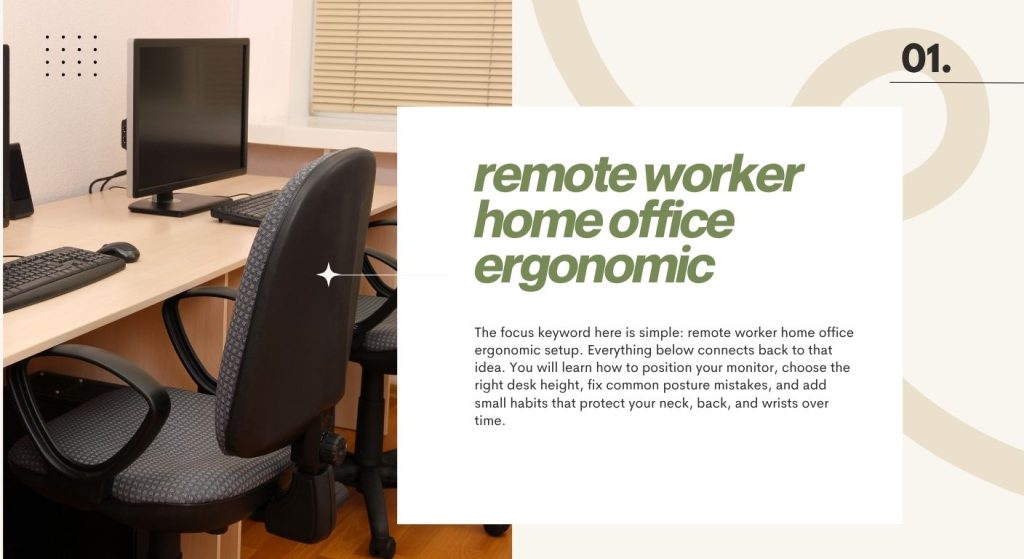
A remote worker home office ergonomic setup is not about buying the most expensive chair or the biggest desk. It is about arranging your screen, keyboard, seat, and lighting so your body stays neutral and comfortable through a full working day. This guide walks you through a practical, affordable ergonomic setup you can build step by step, even in a small apartment or a shared room.
The focus keyword here is simple: remote worker home office ergonomic setup. Everything below connects back to that idea. You will learn how to position your monitor, choose the right desk height, fix common posture mistakes, and add small habits that protect your neck, back, and wrists over time.
Why Ergonomics Matters More for Remote Workers
In a traditional office, someone else often handles desk height, chair quality, and lighting. At home, that responsibility falls on you.
Remote workers also tend to work longer without moving. There is no walk to a meeting room, no commute, and no colleague stopping by your desk.
That combination of long hours and poor positioning is what causes most remote work discomfort. A proper remote worker home office ergonomic setup reduces that risk significantly.
- Fewer headaches caused by screen glare and neck strain
- Less lower back pain from unsupported sitting
- Reduced wrist and shoulder tension from awkward keyboard angles
- Better focus because your body is not constantly adjusting
- More consistent energy across the whole workday
The Core Principles of an Ergonomic Setup
Good ergonomics follows a few simple rules. You do not need to memorize a manual.
Think of your body as a stack of blocks. Ears over shoulders, shoulders over hips, hips over knees, knees over ankles.
Your best posture is your next posture. Movement matters as much as perfect positioning.
When your body stays close to that neutral stack, muscles work less. That means less fatigue by the end of the day.
- Keep the spine in a natural, supported curve
- Keep elbows near a 90-degree angle
- Keep wrists straight, not bent up or down
- Keep the top of the screen near eye level
- Keep feet flat and supported
Choosing the Right Chair for Remote Work
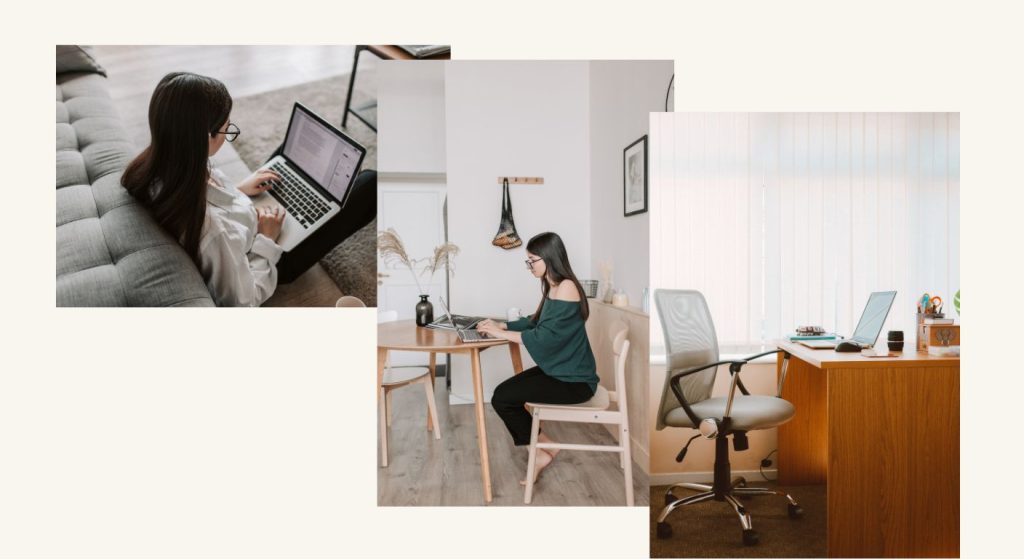
The chair is the single most important piece of your remote worker home office ergonomic setup. You sit in it for hours.
A good chair does not have to be premium. It needs adjustable height, a supportive back, and a seat that fits your body.
What to Look For
- Adjustable seat height so feet rest flat on the floor
- Lumbar support that fits the lower back curve
- Seat depth that leaves a small gap behind your knees
- Adjustable armrests that let shoulders relax
- Breathable material for long sitting sessions
Budget Alternatives
If a full ergonomic chair is out of reach, you can still improve what you have.
- Add a lumbar cushion to an existing chair
- Use a firm cushion to raise seat height if needed
- Place a footrest under the desk to support shorter legs
- Remove armrests if they force your shoulders up
Desk Height and Layout
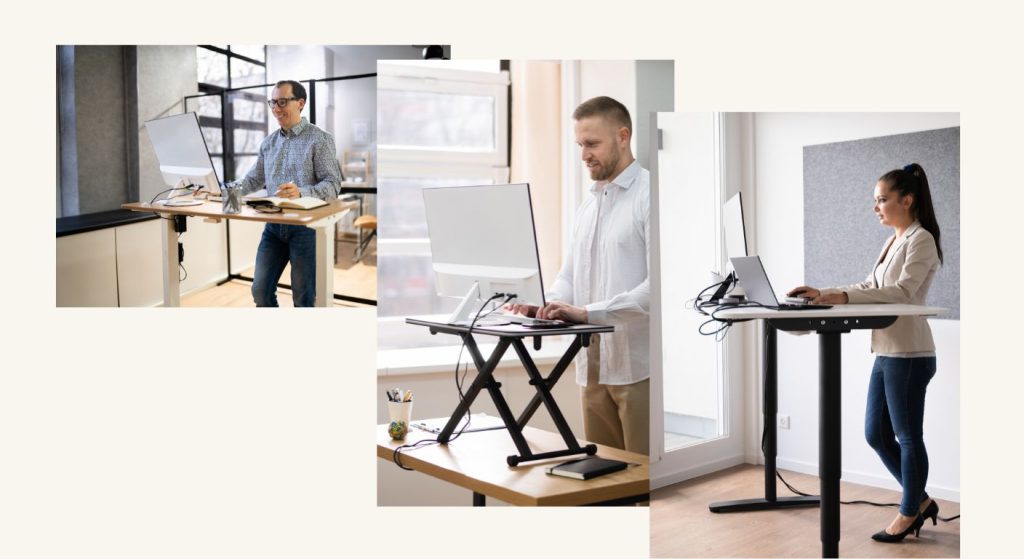
Your desk should let your elbows rest near a 90-degree angle while your shoulders stay relaxed.
If the desk is too high, your shoulders creep upward. If it is too low, you hunch forward. Both create tension over time.
Quick Fixes for the Wrong Desk Height
- Raise the chair and add a footrest if the desk is too high
- Add a keyboard tray or riser if the desk is too low
- Keep frequently used items within easy reach
- Leave space under the desk for your legs to move freely
Keep the area directly in front of you clear. Your keyboard and mouse should sit close to your body, not at the far edge of the desk.
Monitor Position and Screen Setup
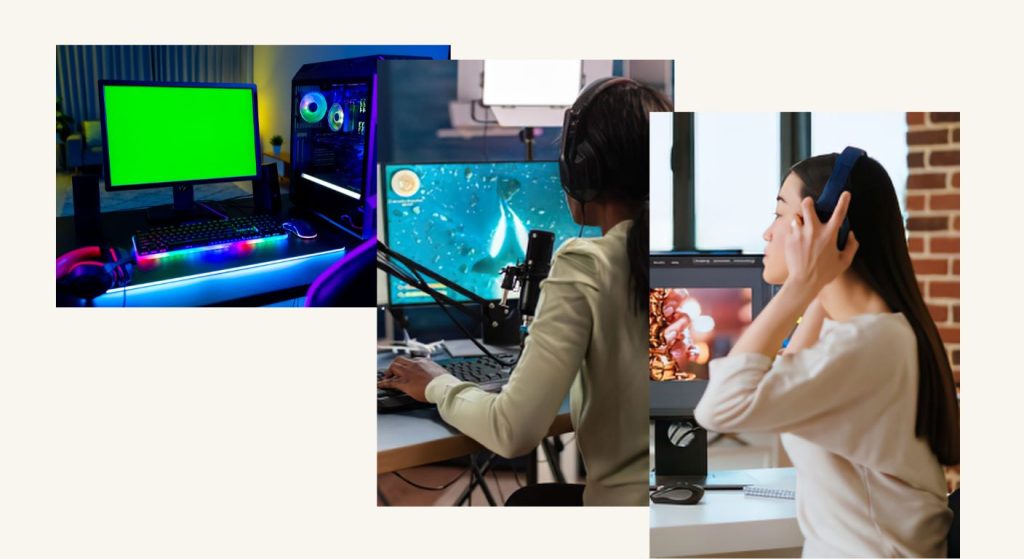
Your monitor position affects your neck more than almost anything else.
The top of the screen should sit roughly at eye level. The screen should be about an arm’s length away.
- Center the main screen directly in front of you
- Tilt the screen slightly back to reduce glare
- Use a laptop stand if you work on a laptop
- Add an external keyboard and mouse when using a stand
- Place a second monitor at the same height as the first
A laptop alone is rarely an ergonomic setup. Raise the screen, then separate the keyboard.
If you use two screens, angle them slightly toward you. Avoid placing one screen far to the side where you must twist your neck to see it.
Keyboard, Mouse, and Wrist Comfort
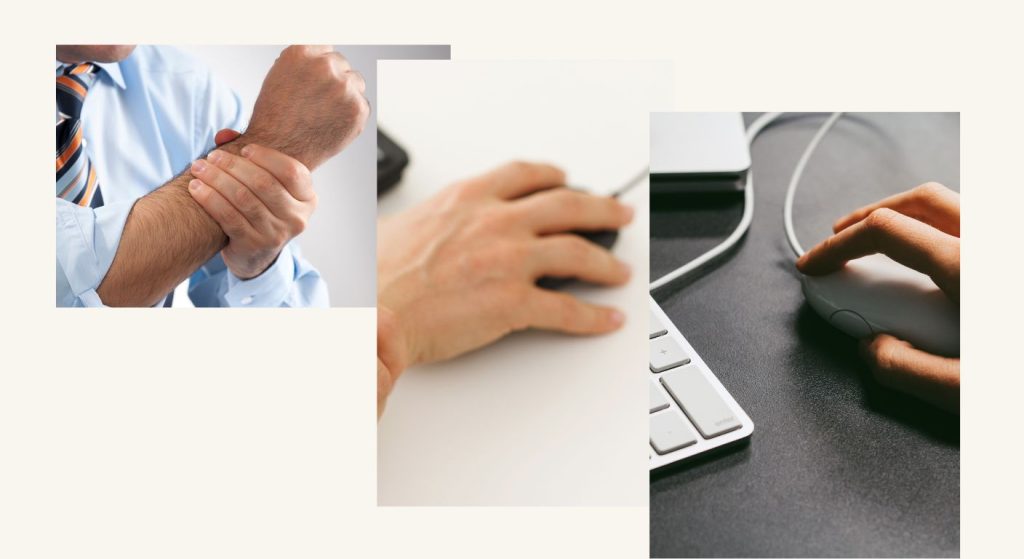
Wrist and hand pain is common among remote workers who type all day.
Keep your wrists straight and your hands floating lightly over the keys. Avoid resting your wrists on a hard edge while typing.
- Keep the keyboard flat or slightly negative in tilt
- Place the mouse close to the keyboard
- Use a mouse that fits your hand size
- Consider a vertical mouse if your wrist aches
- Take short breaks to stretch fingers and forearms
Lighting and Glare Control
Good lighting reduces eye strain and helps you avoid leaning toward the screen.
Place your desk so windows are to the side, not directly behind or in front of the screen.
- Use soft, indirect light around the workspace
- Add a desk lamp for focused tasks
- Adjust screen brightness to match the room
- Use blinds to control harsh afternoon sun
Ergonomic Priorities
The table below shows which adjustments matter most and how easy they are to fix.
| Setup Area | Impact on Comfort | Difficulty to Fix | Typical Cost |
|---|---|---|---|
| Chair support | High | Medium | Low to High |
| Monitor height | High | Low | Low |
| Desk height | High | Medium | Low to Medium |
| Keyboard and mouse | Medium | Low | Low to Medium |
| Lighting | Medium | Low | Low |
| Foot support | Medium | Low | Low |
Movement and Micro-Breaks
Even a perfect remote worker home office ergonomic setup cannot replace movement.
Sitting still in any position for hours causes stiffness. The fix is frequent, small changes in posture.
- Stand up every 30 to 45 minutes
- Stretch your neck gently side to side
- Roll your shoulders back a few times
- Walk to refill your water
- Use a standing desk option if available
Simple Stretch Routine
You can do this in under two minutes, right at your desk.
- Chin tucks to release the neck
- Shoulder rolls to loosen the upper back
- Wrist circles to ease typing tension
- Standing hip flexor stretch for the lower back
Building Your Setup on a Budget
You do not need a full office budget to improve your workspace.
Start with the highest-impact, lowest-cost fixes, then upgrade over time.
- Use books or a box to raise your monitor
- Add a cushion for lumbar support
- Place a small box under the desk as a footrest
- Move your desk to reduce window glare
- Add an external keyboard and mouse for laptop work
Common Mistakes to Avoid
Many remote workers repeat the same mistakes without realizing it.
Avoiding these small errors can make a big difference in daily comfort.
- Working only on a laptop for full days
- Placing the monitor too low or too far to one side
- Ignoring foot support
- Sitting without any lumbar support
- Skipping breaks during busy days
- Keeping the mouse far from the keyboard
Conclusion
A strong remote worker home office ergonomic setup comes down to a few core habits. Support your back, raise your screen, keep your wrists straight, and move often.
You do not need to fix everything at once. Start with the chair and monitor, then adjust the desk, keyboard, and lighting over time. Small, consistent changes protect your body and help you work more comfortably for years.
Frequently Asked Questions
What is the most important part of an ergonomic home office?
The chair is usually the most important element. It supports your back and hips for hours, so a chair with adjustable height and lumbar support has the biggest impact on comfort.
Can I work ergonomically with only a laptop?
Not comfortably for long periods. A laptop forces your neck down and your wrists close together. Raise the laptop with a stand and add an external keyboard and mouse.
How high should my monitor be?
The top of the screen should sit roughly at eye level. That keeps your neck neutral instead of tilting up or down through the day.
Do I need an expensive chair?
No. A chair with adjustable height, decent lumbar support, and a comfortable seat is enough. Cushions and small adjustments can improve a basic chair.
How often should I take breaks?
Aim to stand and move every 30 to 45 minutes. Even a short stretch or a walk to refill water helps reduce stiffness.
What is the correct desk height?
Your desk should let your elbows rest near a 90-degree angle with relaxed shoulders. Adjust your chair and add a footrest if the desk is too high.
Where should I place my desk relative to a window?
Place it so the window is to your side. A window directly behind or in front of the screen creates glare and eye strain.
Is a standing desk better than sitting?
Neither is better on its own. Alternating between sitting and standing throughout the day is the healthiest approach.
How do I fix wrist pain from typing?
Keep your wrists straight, place the mouse close to the keyboard, and take frequent hand breaks. A vertical mouse can help if discomfort continues.
Can I improve ergonomics without buying anything?
Yes. Raising your monitor with books, adding a cushion, adjusting chair height, and moving your desk away from glare all cost nothing.